Autopay and payment methods
Available on Run and Grow
Turn autopay on for each enrollment, manage or cancel it in the billing portal, and keep the cards and bank accounts you pay with.
When autopay is on, your default payment method is charged on each invoice's due date. It's optional, and you turn it on for each enrollment separately.
Turn autopay on
- Open Autopay. On the web it's a card on your home screen. In the app, open the Billing tab.
- Find the enrollment. Each row shows your child, the school, the billing plan and how often it bills. The tag reads Autopay off.
- Click or tap Turn on.
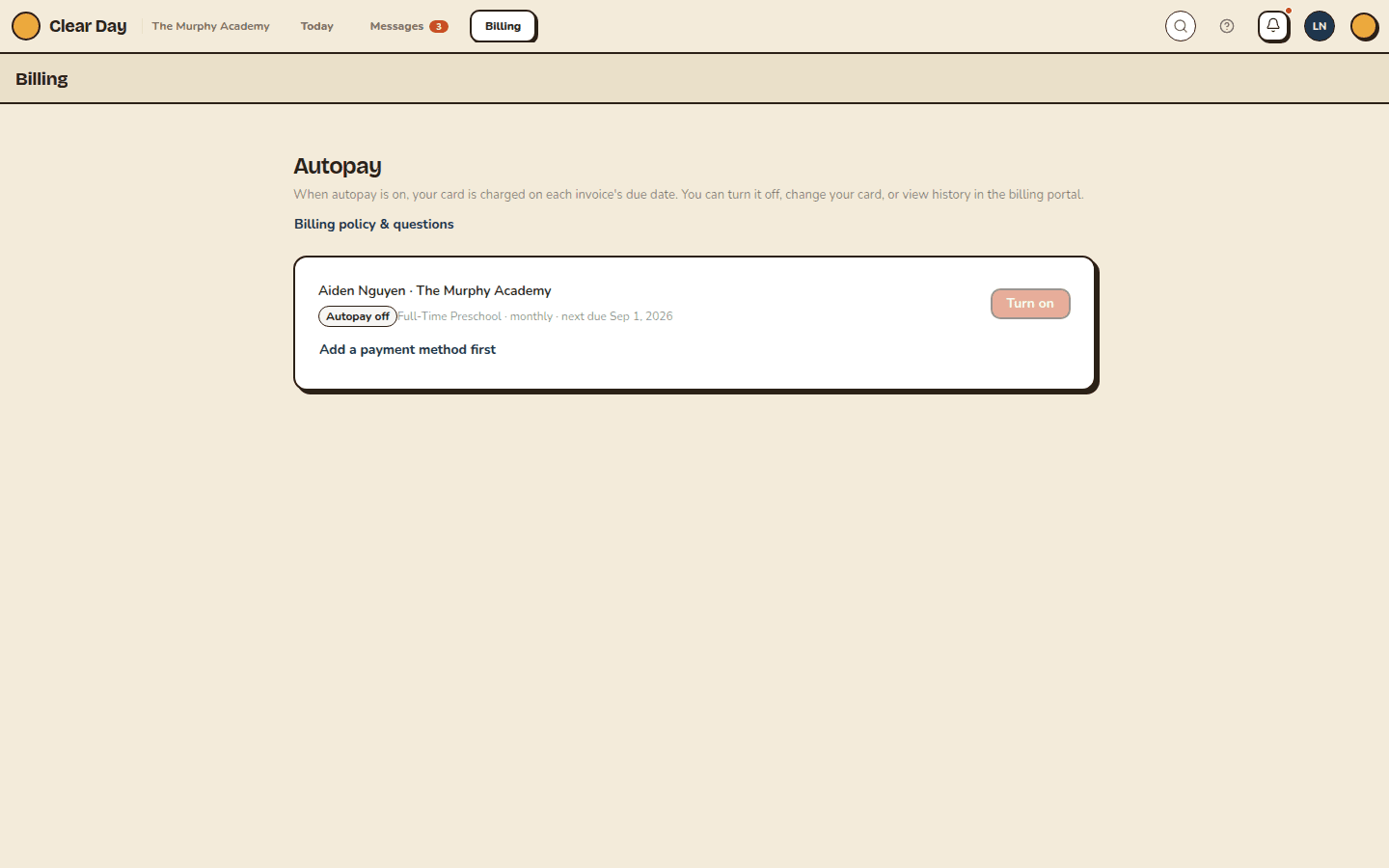
You need a saved payment method first. Without one, Turn on is grayed out on the web, with an Add a payment method first link. In the app, you're told to add one from Payment methods.
Change or cancel autopay
Once autopay is on, the row shows Manage instead. It opens the billing portal, where you change your card, see invoice history or cancel autopay. There's no off switch on the Autopay screen itself. See View invoices and pay tuition.
If your first payment is declined
Turning autopay on starts the first charge. If the bank declines it, you see Finish your first payment. Open Stripe's secure page, complete the payment, and autopay starts once it clears.
If a charge fails later
Clear Day retries a failed charge a few times. If it still fails, the app sends a notification and shows Autopay couldn't go through on your home screen. Tap it to update your payment method or pay by hand. On the web, check Payment methods and Autopay. The common causes are in Why did my payment fail?.
Split tuition
If your school splits one enrollment between two payers, autopay shows Coming soon for that row. Your school arranges each payer's share directly for now.
Payment methods
Open Payment methods to see every card and bank account on file. On the web it's a card on your home screen. In the app, tap Methods at the top of Autopay. Tags show which one is the Default, which one autopay charges, and which cards are FSA/HSA.
- Add one. In the app, tap + Add payment method. On the web, click Add method, enter your details in the Stripe form, then click Save method. You can save cards, bank accounts and FSA or HSA cards.
- Change the default. Tap Make default on the method you want autopay to charge.
- Remove one. Tap Remove and confirm.
Your full card and bank numbers go to Stripe and stay there. If your child has left the school, Payment methods is read-only.
Still stuck? Email [email protected].
Related articles
- View invoices and pay tuition
Find your invoices and receipts in the billing portal, reached from Autopay, and what to do if you pay by hand.
- Your school's billing policy
See your school's published billing policy and ask a question about late fees, refunds, autopay or withdrawals.
- A tuition payment didn't go through
Why a tuition payment can fail, and how to update your card so your balance settles.
Last updated on