Read your enrollment forecast
Available on Grow
See how full each room will be next month, work Sunny's move-up and waitlist suggestions, and draft outreach to families.
The Enrollment forecast turns your roster, ratios and billing into a look at the month ahead: how full each room will be, who's ready to move up, where revenue sits in empty seats and which families are worth a note. Directors and admins can use it.
On Run, you get a current-month occupancy view only. The suggestions and move plans are Grow.
Open Enrollment forecast from the School hub on the web, or from the School tab in the app.
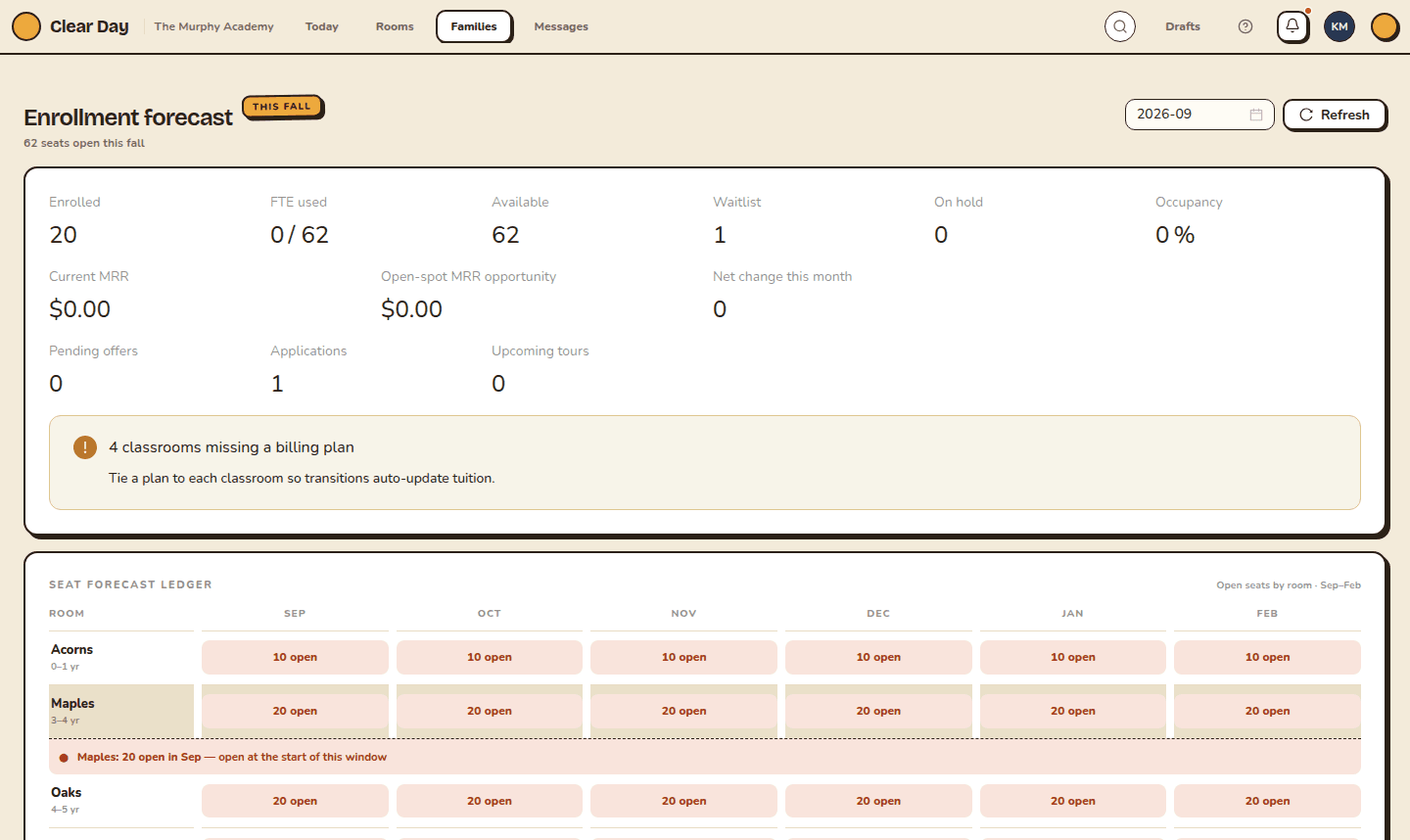
The numbers up top
The top of the page shows a seat ledger: enrolled, capacity, occupancy, open spots, waitlist and on hold. Below it are current monthly recurring revenue, the revenue opportunity in open spots, revenue at risk, the projected net change this month, and pending offers, applications and upcoming tours.
On the web, use the month picker and Refresh at the top. In the app, pull down to refresh.
If a room has no billing plan, you see a warning. Attach a plan to each room so a move updates tuition on its own.
Room cards
Each classroom has a card with a capacity bar, age range and the number of children moving in or out, ready to move up, aging out, and open spots. A card also says ratio limit or ratio exceeded when staffing is tight.
Work the suggestions
Suggestions lists recommended moves, each tagged Move up or Waitlist match, with projected tuition change, ratio impact and a Why column. For each one you can:
- Accept to create a move plan.
- Draft to write an outreach message.
- Schedule tour to book a tour with the family.
- Snooze to set it aside for 7 days.
- Reject to pick a reason: timing too early or too late, family declined, family left school, financial, readiness concern, ratio concern, or other. A note is optional except for Other. Your reasons feed "Why families said no" and stop the same move from coming back.
Draft and send outreach
Draft writes a subject and body. If more than one voice is offered, tap one to preview it. Nothing leaves until you select Send, and Send works only for email drafts with a family on file.
On a waitlist match, a warning such as "Lead idle for N days — reconfirm interest before sending outreach" means the family hasn't been in touch for a while.
Reach back out
The Reach back out card lists families who withdrew and may be worth a note.
Move plans
Accepted suggestions land in Move plans on the web, with status, child, target room and effective date. If the billing sync fails, the row says why, usually a missing billing plan on the destination room. Fix that and it clears on its own. The web also shows a capacity timeline and a comparison of accepts, rejects, tours and withdrawals.
Next
To park families who aren't ready, see Manage your waitlist. If a number looks wrong, check for a record that's fallen behind, or email [email protected].
Related articles
- Manage your waitlist and class offerings
Keep your waitlist in order by program and year, then open seats to your current families before the public sees them.
- Manage classrooms
Create and edit classrooms, set the age group, capacity and staff-to-child ratio, and understand what a room adds to your bill.
- Create and manage billing plans
Build the tuition plans Clear Day uses to invoice families on a regular schedule.
Last updated on