Manage the school calendar
Available on every plan
Add events and closings, tell families about a closure, set tour hours and share one calendar link with every family.
The school calendar shows events, holidays, closures and tours for the month. Everyone at your school can see it. Only directors and admins can add or change things.
Open School calendar on the web, or the Calendar in the app. Use the arrows by the month name to move between months. Each day with something on it shows a colored dot per type. Select a day to list its events below the grid.
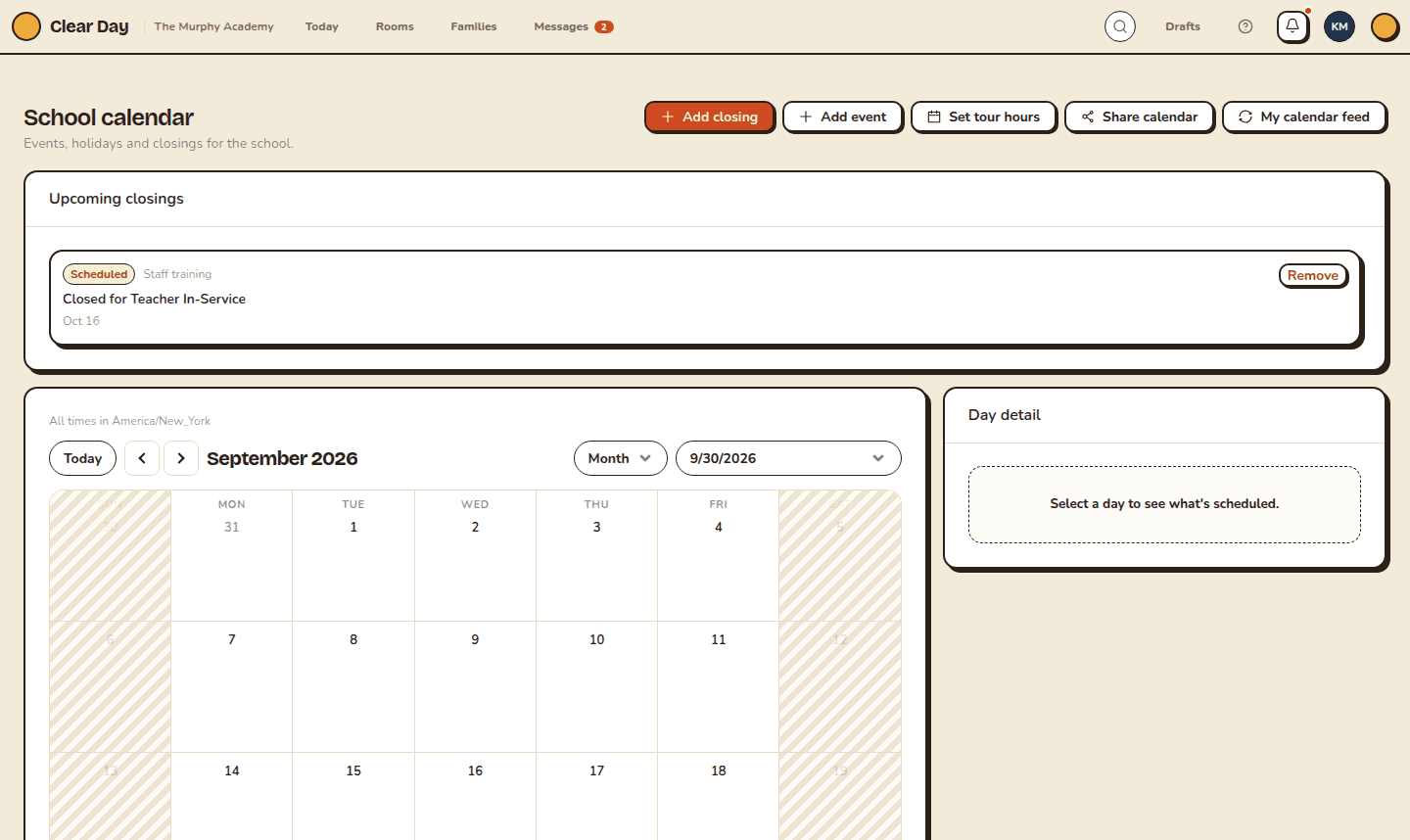
The event types are Holiday, Closure, Event, Early Dismissal, Parent-Teacher and Field Trip.
Add an event
- Select Add event. Picking a day first fills in the date.
- Enter a Title, and a Description if it helps.
- Set a Start date. Add an End date only for a multi-day event.
- Leave All day on, or turn it off to set times.
- Pick a Type and select Create.
To change or remove an event, open its day. On the web, use the pencil to edit (the button then reads Save) or the trash to delete, and confirm. In the app, tap the event to edit it, or long-press it and confirm Delete.
On the Free plan
Free schools can add 10 new events a month. Closings, holidays and early dismissals don't count. At the limit you see "You've added this month's events", and you can still add a closing. Plus, Run and Grow have no limit.
Add a closing
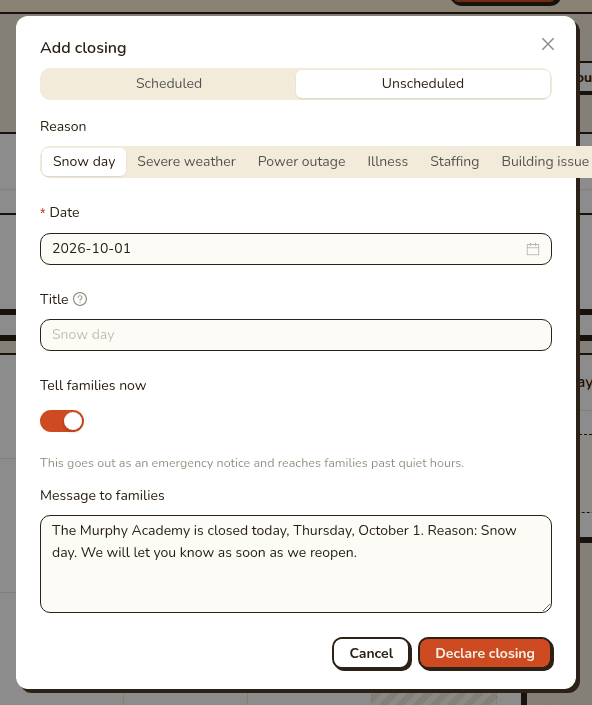
Select Add closing. You can record a scheduled closing or an unscheduled one, such as a snow day. Pick a Reason, set the date or dates, and select Save closing (or Declare closing for an unscheduled one).
Turn on Tell families now to send a message with a Message to families. Telling families needs Run or Grow. On Free and Plus, the closing still goes on the calendar.
The Upcoming closings card lists closings you can edit or remove.
Set tour hours
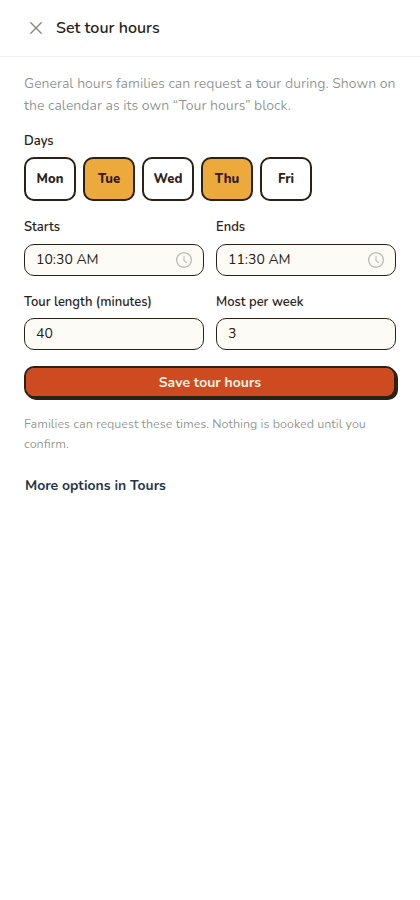
Set tour hours opens the windows families can book tours in. See Let families book tours from your site.
Share the calendar
Select Share calendar to open Share this calendar. It gives you one link to give every family. They add it to the calendar they already use, with no app or account. It carries events, holidays, closures, early dismissals and changed hours. It has no child names, absences or contact details.
Anyone with the link can read it, so replace the link if you need it to stop working. Apple Calendar and Outlook refresh about hourly, and Google Calendar can take up to a day. For a same-day closure, send an announcement as well.
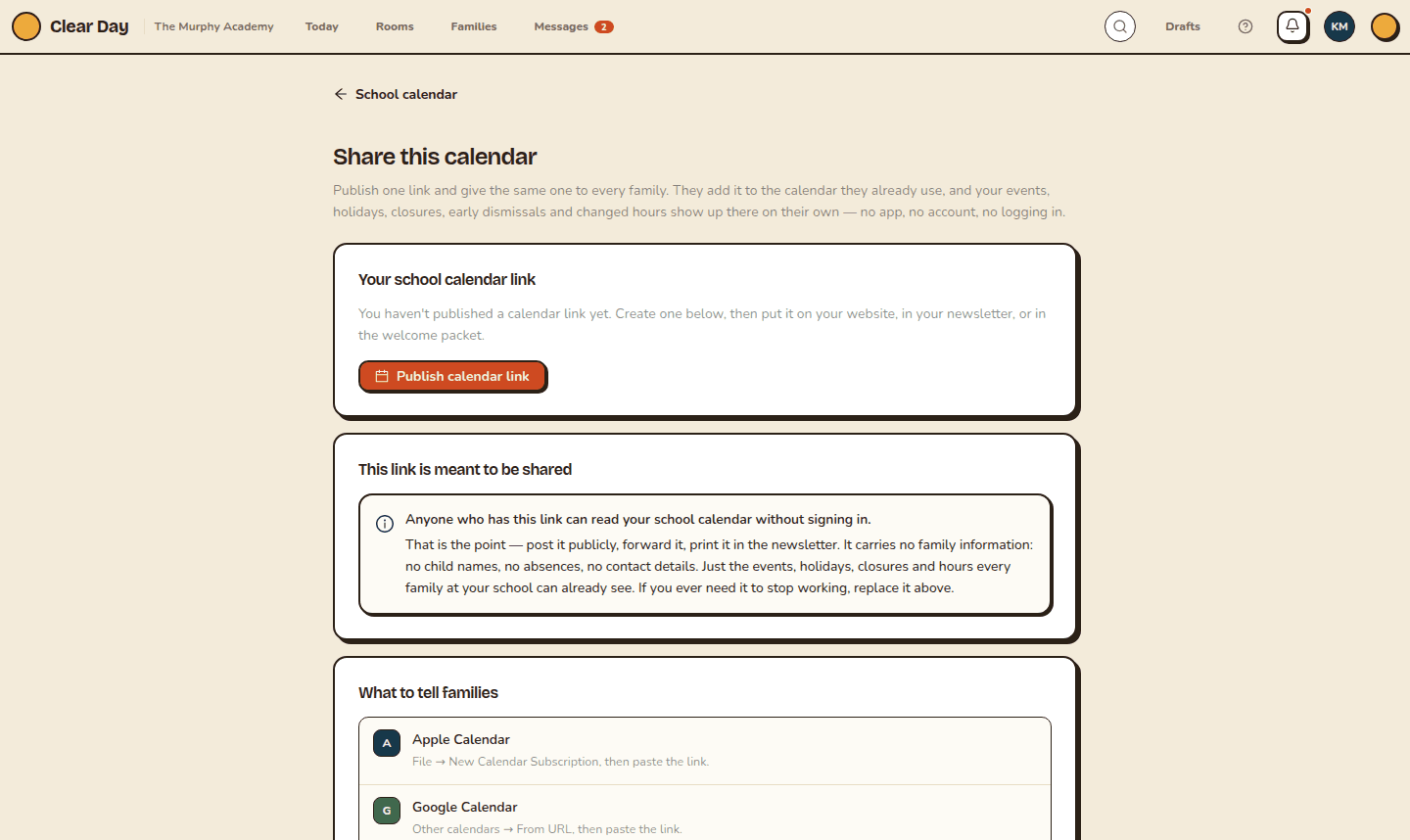
Staff also have My calendar feed, under Settings and next to Share calendar for directors, to put the school calendar in their own calendar app. It works on every plan, Free and Plus included.
Related articles
- Let families book tours from your site
Set your tour hours, block dates, accept a tour request, and see what the Free plan's limit of 4 bookings a month means.
- Assign teachers and report planned absences
Choose which teachers staff a classroom, and log a child's planned absence ahead of time so the day doesn't read as unexpected.
- Manage your school profile
Keep your school's name, address, phone, state, time zone and operating hours current. Licensing, your website and daily operations read from them.
Last updated on
Set up curbside check-in
Require parents to be near the school when they check in from the app by setting an anchor point, a radius and a rule for missing location.
Run headcounts and spot checks
Count the whole school at once and watch each room confirm, or check a single room on the spot. Both leave a record.