Set up curbside check-in
Available on Run and Grow
Require parents to be near the school when they check in from the app by setting an anchor point, a radius and a rule for missing location.
Curbside check-in requires a parent to be near your school before they can check a child in from the app. It's a geofence: a center point and a radius around it. Directors and admins set it up.
On the web, open Curbside check-in from the School hub. In the app, open the School tab, then School setup, then Curbside check-in. There's no Save button. Each change saves as you make it, and Saving… confirms.
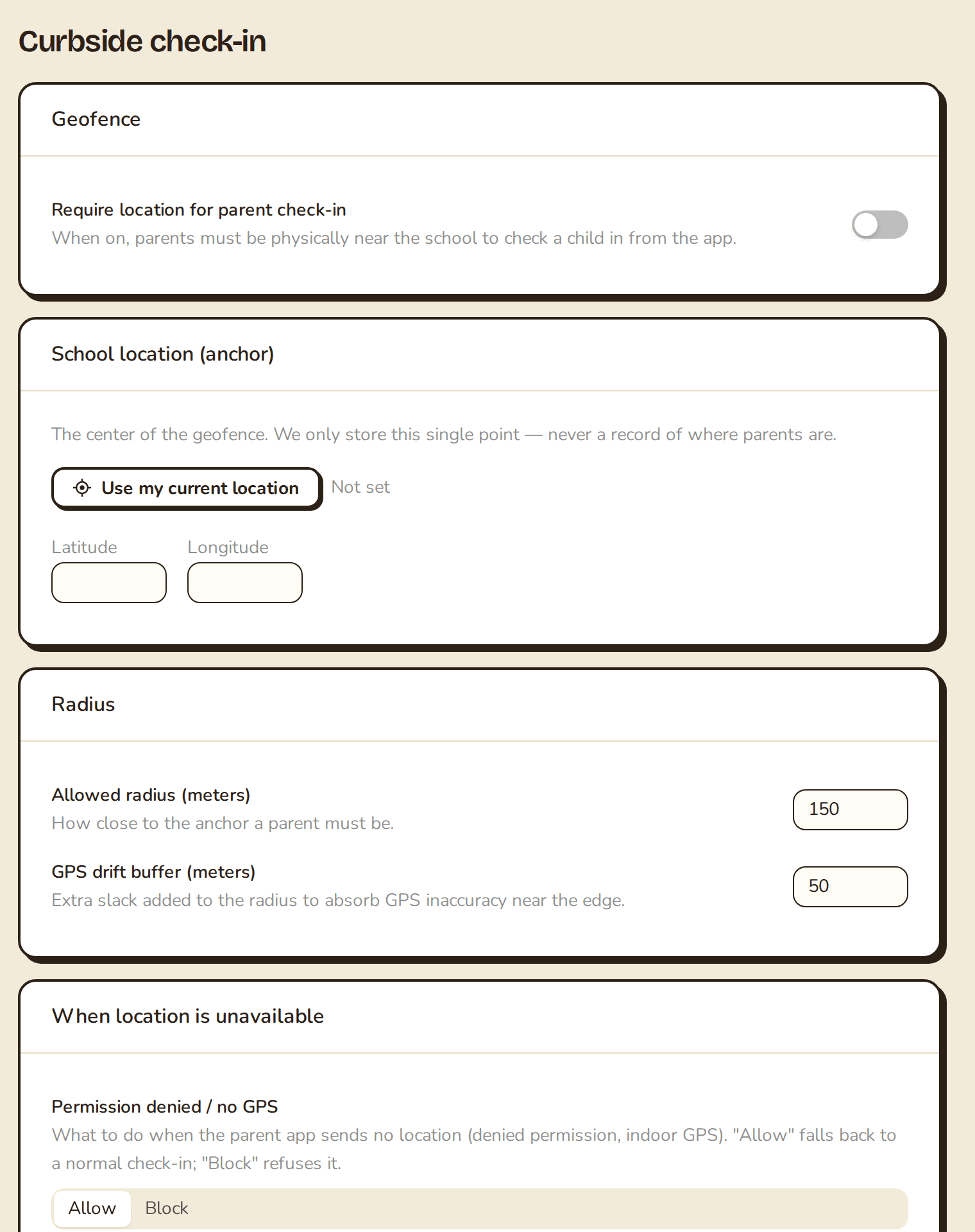
Turn it on
On the Geofence card, switch on Require location for parent check-in.
It does nothing until you set the anchor. If it's on with no anchor, the card warns "No anchor set yet" and the rule is not enforced.
Set the anchor
On School location (anchor):
- On the web, Use my current location reads your browser's location. Do it from your campus, and allow the permission prompt.
- Or type a Latitude and Longitude. The app takes typed coordinates only. It has no current-location button.
The card shows Not set until you save a point. Clear Day stores only this one point. It never keeps a trail of where parents are.
Radius and buffer
- Allowed radius (meters) is how close a parent must be, from 10 to 5000. Cover your pickup area without reaching the road.
- GPS drift buffer (meters) adds slack for GPS wobble near the edge, from 0 to 2000.
When location is unavailable
A parent may have denied permission, or their phone can't get a fix indoors. When location is unavailable decides what happens:
- Allow: check-in goes through.
- Block: check-in is refused.
Choose Allow if the geofence is a nudge and Block if location is a firm rule.
If a parent is turned away
They can turn location back on in their phone's settings under Clear Day, then reopen the app and try again.
For who can take a child home and what happens outside your hours, see Set your attendance rules.
Related articles
Last updated on
Set your attendance rules
Choose who can take a child home, what happens when attendance changes outside your hours, how badge taps behave, and who hears about a late arrival.
Manage the school calendar
Add events and closings, tell families about a closure, set tour hours and share one calendar link with every family.