Manage daily attendance
Available on Run and Grow
Check children in and out, mark absences, take a head count and look back over a child's history.
Attendance happens in each classroom. Teachers and school admins can check children in and out, and every change is stamped with who made it and when. How the pickup step behaves is set school-wide in Configure attendance settings.
Check children in and out on the web
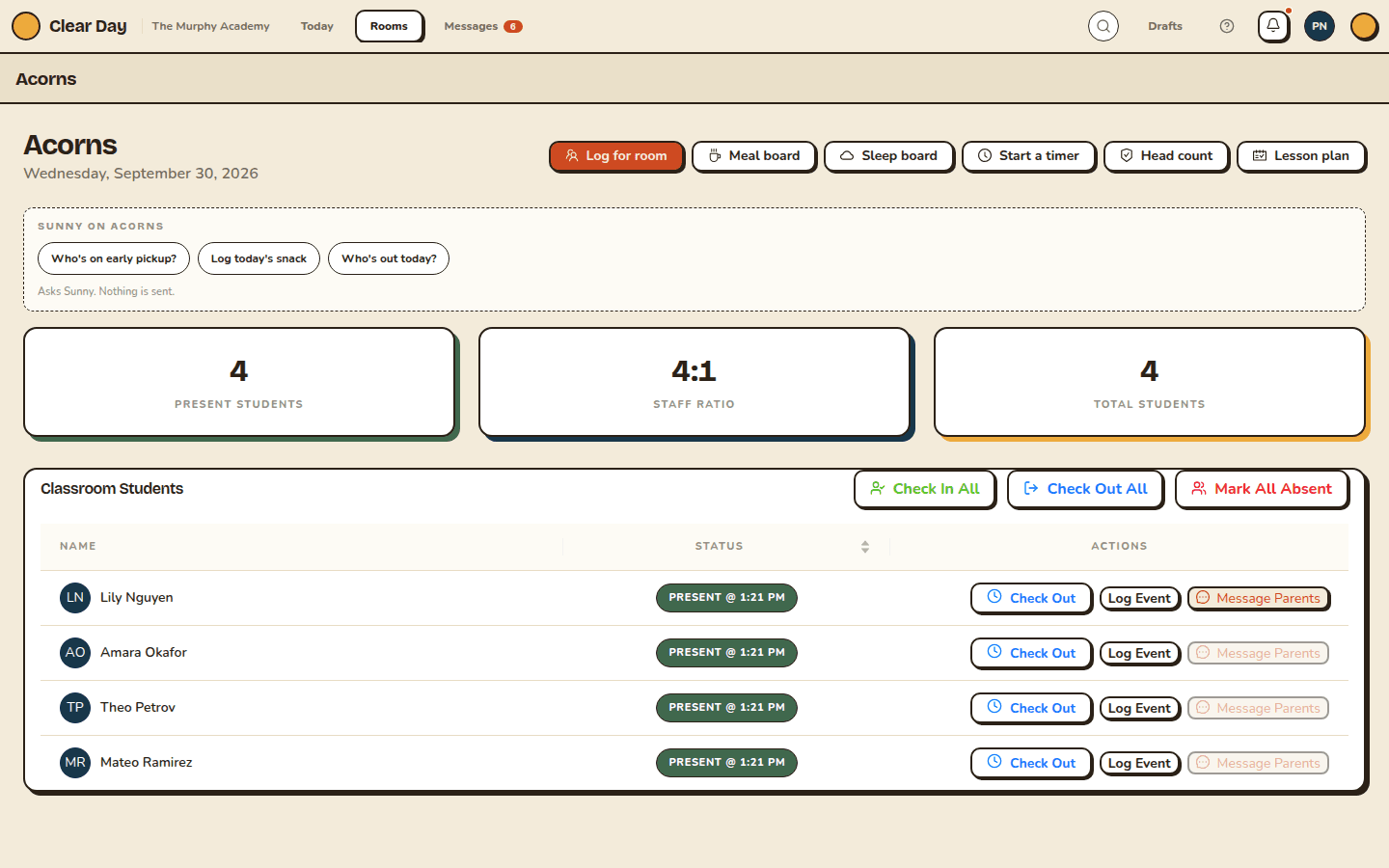
Open a classroom. Each child has a row with a status and the buttons that fit it: Check In for a child who isn't here yet, Check Out for a child who is, and Mark Absent. The header has Check In All, Check Out All (present children only) and Mark All Absent for a whole room at once.
If your school asks for pickup authorization, Check Out opens a short sheet first. Who's picking up? lists the child's caregivers. When your school requires a selection, caregivers who aren't authorized for pickup are grayed out; when it only warns, you can continue without choosing. A second, optional step, Today's behavior, lets you rate the day or Skip it. The rating never blocks the checkout.
At the top of the room, Present students, Staff ratio and Total students update as the day moves. Head count opens a spot check: confirm each child is where they should be and submit the count. For school-wide counts, see Run head counts and spot checks.
Check children in and out in the app
The room board has three views: Everyone, Arrivals and Departures.
- In Arrivals, each child who isn't in yet has a Check in button. Press and hold it to stamp the time; the button reads "Keep holding" until it commits.
- In Departures, press and hold Check out the same way. Check-out still asks who's picking up when your school requires it.
- Tap any card to open that child's day, with Check in or Check out and Mark absent for today.
- Long-press a card for the full status picker, where you can mark a child absent, add a note or correct a status.
The header shows a ratio pill such as "4:1 · in ratio", "near limit" or "over ratio", and Take a head count. If staffing slips past the limit, a Student-teacher ratio exceeded banner appears so you can move a teacher before it becomes a compliance problem.
What the statuses mean
| Status | What it means |
|---|---|
| Present (checked in) | The child is in care right now. |
| Checked Out | The child has left for the day. |
| Absent | The child was expected but didn't come. |
| Not Present | No activity yet today. It's a default, not a record. |
A normal day runs Not Present, then Present, then Checked Out. To record a real absence, use Mark Absent (web) or Mark absent for today (app). Absences you know about ahead of time go in as planned absences.
Look back at a child's history
Open a child and select Attendance history for a month view. Each day with activity gets a colored dot. Use the arrows to change months, and tap a day to see every record for it: the time, the status, who made the change (Updated by) and any notes.
Directors can also see attendance across the school in Understand attendance reports.
Related articles
- Set your attendance rules
Choose who can take a child home, what happens when attendance changes outside your hours, how badge taps behave, and who hears about a late arrival.
- Assign teachers and report planned absences
Choose which teachers staff a classroom, and log a child's planned absence ahead of time so the day doesn't read as unexpected.
- Run headcounts and spot checks
Count the whole school at once and watch each room confirm, or check a single room on the spot. Both leave a record.
- Understand attendance reports
How to read the attendance report, and exactly how its summary numbers are counted.
Last updated on