Log for the whole room
Available on Run and Grow
Log a meal, bottle, nap or photo for several children at once, and use the meal board and sleep board for the room.
When the whole room ate lunch or went down for a nap, you don't have to log each child one at a time. Teachers and school admins can log for a group, and each child gets their own entry on their timeline and daily report. To log one child, see Log a child's meals, naps and activities.
Log one thing for a group
On the web, open a classroom and select Log for room. In the app, open Room actions and choose Log for room, or tap Log — meal, nap, photo….
- On the web, choose What happened?: Meal, Bottle, Nap, Photo, Observation or Note. In the app, tap Meal, Bottle, Nap, Bathroom, Activity or Note.
- Choose Who? Check the children, or use All and None. In the app, Everyone in picks every child who is checked in, and Clear empties the list.
- Fill in the details. A meal takes the meal and an amount; a bottle takes contents and ounces offered; a photo takes one or more pictures.
- Add a note if you like, then select Log for and the number of children selected. In the app the button reads, for example, "Log meal for 6 children".
In the app, Photo and Incident in the same picker take you to their own forms. For an incident, see File an incident report.
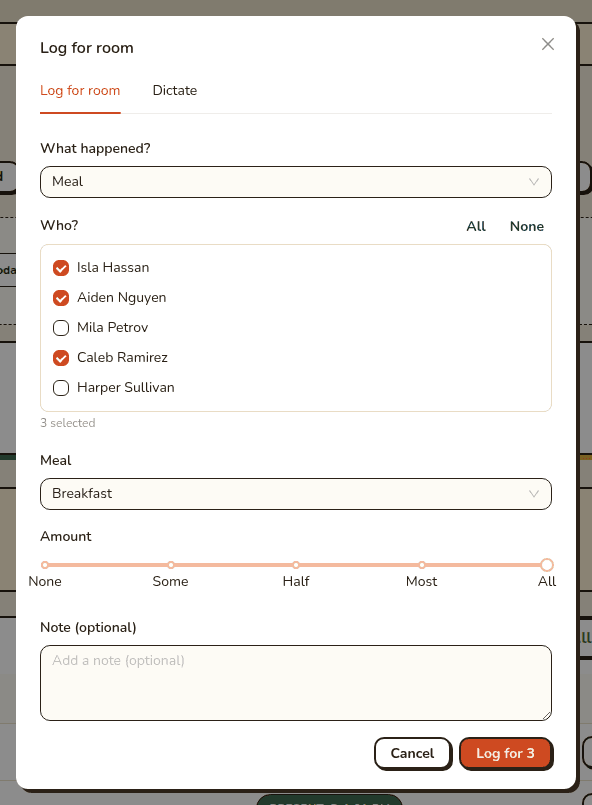
The web dialog has a second tab, Dictate, where you type or paste what happened and Clear Day drafts the entries for you to review. Dictation is a Grow feature and may not be on yet for your school; see Dictate classroom events.
Meal board
The meal board is for a room where each child ate a different amount. Staff open it with Meal board on the web, or from Room actions in the app.
- Choose the meal at the top. Clear Day fills in today's menu for that meal and lists every checked-in child.
- Set each child's amount: None, Some, Half, Most or All. Set remaining to Half, Most or All fills in everyone you haven't set yet. Add a per-child note if needed.
- Select Save. Only the rows you changed are saved, and the footer counts how many children are recorded.
If a child's allergy matches an item on the menu, the row flags it. If there's no menu for that meal, the board tells you to add one under School → Menus, or to log the meal from Log for room. In the app, the meal board is rolling out: if you don't see it yet, it isn't on for your school.
Sleep board
The sleep board is a live nap tracker. Open it with Sleep board on the web or in Room actions.
- Each child shows as Awake or asleep with a running timer. On the web, Start nap begins a child's nap and Wake up ends it. In the app, tap a child's card to switch them.
- All down starts a nap for everyone who's awake. All up wakes everyone who's sleeping.
- On the web the footer keeps a count: "3 asleep · 9 awake".
The sleep board tracks naps as they happen. It's separate from a Nap event you add to one child's timeline. In the app, the sleep board is rolling out: if you don't see this yet, it isn't on for your school.
Related articles
- Log a child's meals, naps and activities
Log one event for one child, read the daily report it feeds, and set the day's behavior rating.
- Run classroom timers
Start named countdown timers for naps, clean-up and centers, several at once, with a chime when time is up.
- Write weekly meal menus
Fill in what you're serving for each meal, see the week at a glance on the web, and pre-fill the classroom food log for children who are present.
- Dictate classroom events
Say or type what happened in the room, review the entries Sunny drafts, and save them all at once.
Last updated on