File an incident report
Available on Run and Grow
Record an injury, illness, behavioral event or other incident, with the details your team and the family need.
An incident report holds the facts: what happened, what you did and who was involved. It stays on record, and you can share it with the family the moment it's ready. Teachers and school admins can file one. On Free and Plus, use the Ouch report instead; it drafts a family note from your own words.
Start a report
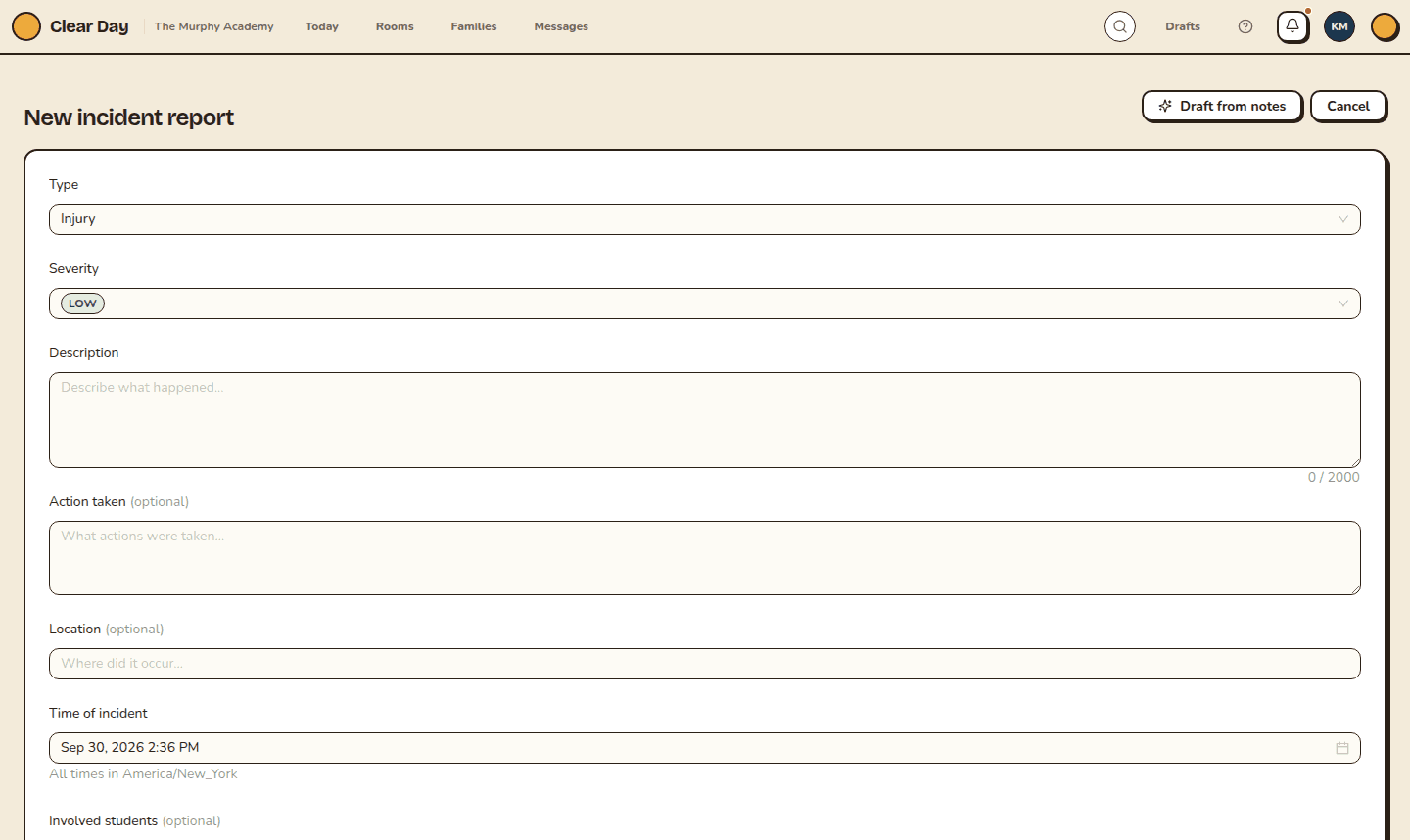
- On the web, open Incident reports from your Today page and select New report. The page is titled New incident report.
- In the app, tap Report incident in Room actions, or on the child's profile. You can also choose Incident in the room's Log picker. The form is titled Incident report.
Fill it out
- Choose the Type: Injury, Illness, Behavioral, Medication Error, Allergic Reaction or Other.
- Choose the Severity: Low, Medium, High or Critical. It sets the color your team sees beside the report.
- Write the Description of what happened. It's the only required field.
- Add the Action taken and, if it helps, a Location.
- Set when it happened: Time of incident on the web, When it happened in the app. It defaults to now, so change it if you're writing this up later. It can't be in the future.
- Choose the children under Involved students. Started from a room, the list is that room's roster. Started anywhere else on the web, it lists every active child.
- Use Internal notes for anything your team should see and families shouldn't. They never leave your staff.
- Turn on Share with family to send the report the moment you submit. Leave it off to keep it internal for now. In the app this switch is rolling out: if you don't see it yet, it isn't on for your school.
- Select Submit report.
A new report starts as Submitted, shared or not. On the web it opens right after you submit so you can review, share or edit it. In the app your draft is saved as you type and comes back if the app closes.
Let Clear Day draft it
Two helpers can prefill the form. Neither submits anything, and you should check every field before you select Submit report.
Quick fill (app) is on your phone. Type or dictate what happened in the Quick fill box, for example "Mateo tripped on the playground and scraped his knee, I cleaned it and put on a bandage", then tap Quick fill. It fills Type, Severity, Description, Action taken and Location. The text is read on the device and doesn't leave the phone until you submit. It only appears on phones that support it, and it's rolling out: if you don't see it yet, it isn't on for your school.
Draft from notes (Grow) sends your notes to Clear Day's servers and suggests the same fields. Select Draft from notes, describe what happened in your own words and select Draft. It's on the web's new-report page and in the app. On the web the suggestion shows as an Incident draft: select Apply to form to use it or discard it. Drafting is limited to 12 a minute.
For how a report moves from submitted to resolved, see Review and resolve incident reports.
Related articles
- Review and resolve incident reports
Open a report, share it with the family, watch for their acknowledgment, draft a parent notice and close it out.
- Write an Ouch report
Say what happened in your own words, let Sunny draft the report and a note for the family, then review and print or share them.
- Enroll a child and edit their profile
Add a child, fill in their details, and understand enrollment status and what the profile shows.
Last updated on