Review and resolve incident reports
Available on Run and Grow
Open a report, share it with the family, watch for their acknowledgment, draft a parent notice and close it out.
Directors see every report filed at the school. Teachers see reports for their rooms and children. Open any report to read it, share it with the family, see whether they've acknowledged it and mark it resolved.
Find the report you need
- Directors, on the web: open Incident reports from your Today page. In the app, open Incidents on the School screen.
- Teachers, in the app: open a child's profile and tap Incidents. The web's school-wide list is for directors, so a teacher who opens it sees an error instead of a list.
On the web, each row shows the Type, Severity, Status, the involved students, whether it's Shared or Internal, and when it occurred. The app's row is leaner: type, status, students and date. Three filters narrow the list on both:
- Type: Injury, Illness, Behavioral, Medication Error, Allergic Reaction, Other.
- Severity: Low, Medium, High, Critical.
- Status: Submitted, Acknowledged or Resolved.
The list refreshes as new reports arrive. You can also select Refresh (web) or pull down (app). Tap a row to open the report.
What the statuses mean
- Submitted: the report has been filed.
- Acknowledged: every parent linked to an involved child has confirmed they saw it. Until the last one does, the report stays Submitted.
- Resolved: the incident is handled and closed.
Separately, every report is Shared with family or Internal. Only staff see Internal notes, and families see a report only after you've shared it.
Share, resolve and edit
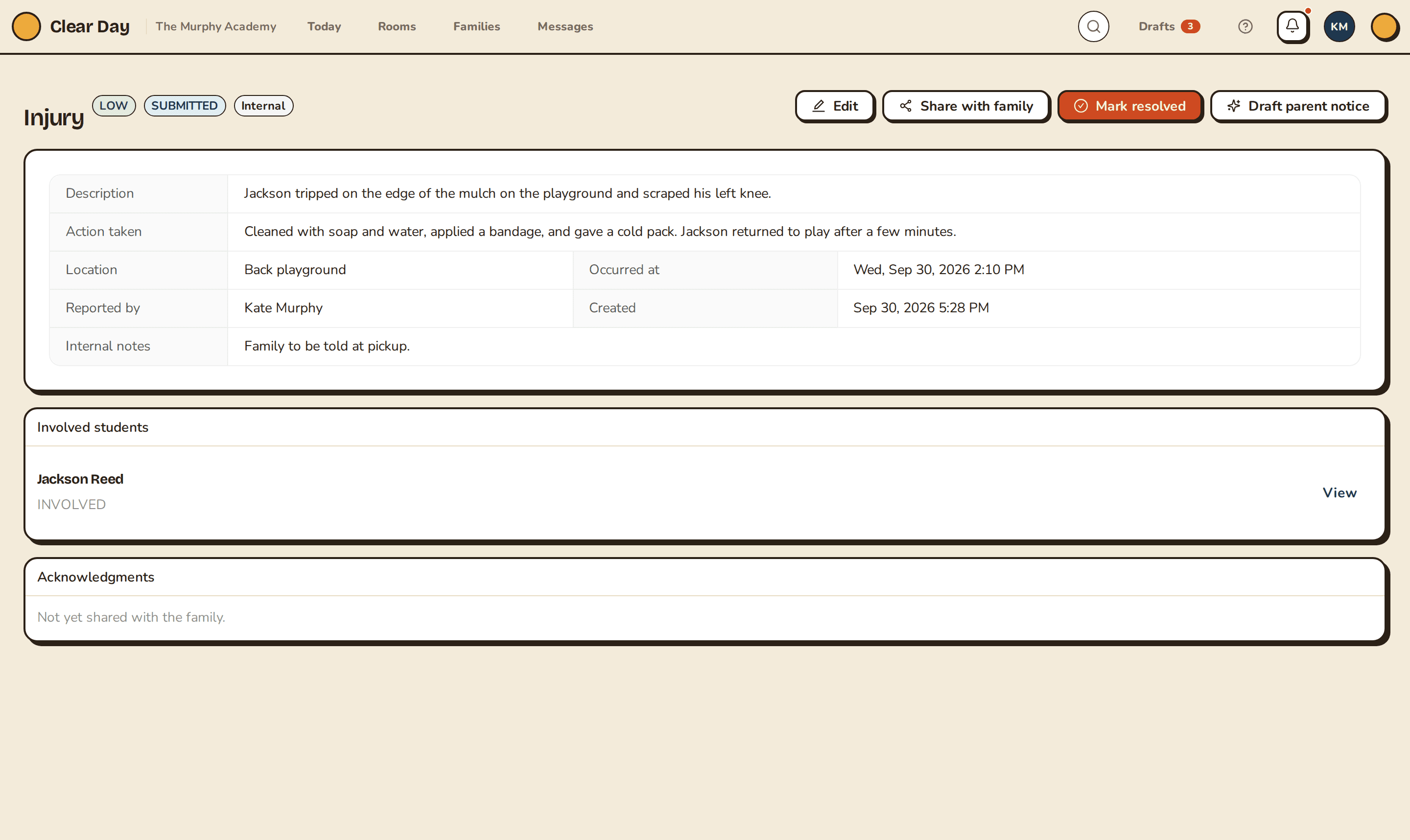
Open the report. From there:
- Share with family lets the family see it. It appears only while the report is internal, and once shared you can't unshare it.
- Mark resolved closes it once it's handled.
- Edit (web only) changes the type, severity, description, action taken, location and internal notes. The involved students and the time of the incident are fixed when you create the report. The edit form also has a Share with family switch for a report that's still internal.
- Draft parent notice (directors on Grow) writes a plain-language note about the incident in a Parent notice draft window, with Copy to clipboard. Nothing is sent. Copy the text into an email or message and change it as you like.
Track acknowledgments
Once a report is shared, Acknowledgments lists each family member who has confirmed and when. On the web you also see what they typed as a signature. The app shows the name and time. Before anyone has confirmed, it says no one has yet, or that the report hasn't been shared.
Families acknowledge from the report itself or from a banner on their home screen; see Acknowledge an incident report.
To file a new report, see File an incident report.
Related articles
Last updated on