Find and read your conversations
Available on Run and Grow
How the Messages inbox is organized, how to search it, and how to see conversations you were not added to.
Messages is one inbox for channels, direct messages and family threads. Open Messages from the top navigation.
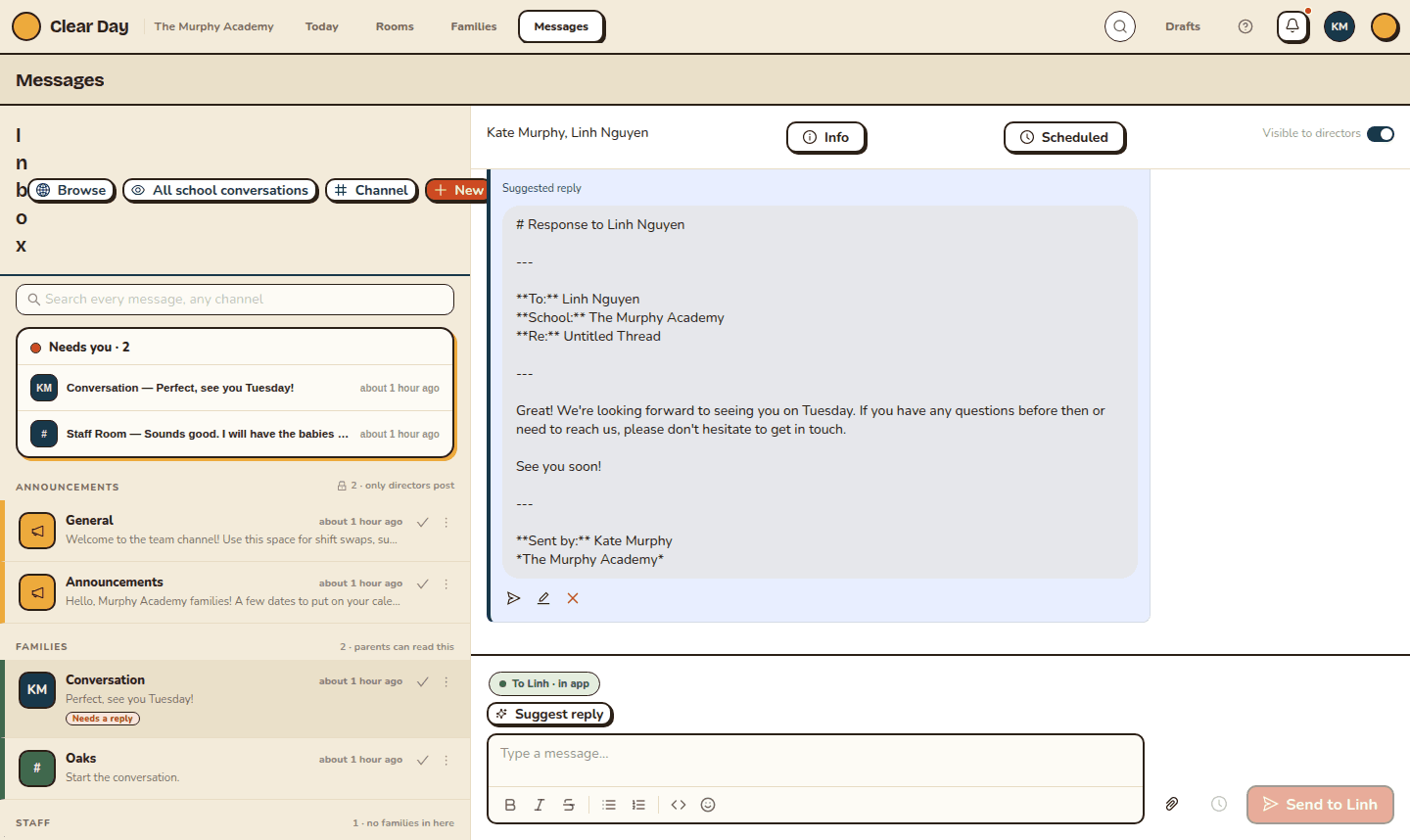
How the inbox is organized
On the web, the inbox groups conversations into sections, most recent first. A section only appears when it has something in it.
- Announcements: school-wide posts. Only directors post here.
- Families: any conversation with a parent in it. Parents can read it.
- Staff: conversations with no families in them.
Each row shows the channel or person, a plain-text preview of the latest message, how long ago it arrived, and a red count of what you have not read. Opening a conversation clears the count.
Above the list, the search box reads "Search every message, any channel". It searches conversation names and the text of messages, and shows message matches under the conversations that match.
When a conversation is waiting on someone to answer it, a Needs you strip appears above the sections. See work your inbox.
The four header buttons
- Browse: find public channels you have not joined and join them.
- All school conversations: directors and admins only. It opens a read-only list of every conversation at your school, including ones you were never added to, such as a teacher's direct message with a parent. Opening one from here does not add you to it.
- Channel: make a new channel. See create and manage channels.
- New: start a direct message. See send a direct message.
In the app
The Messages tab lists your conversations. Compose starts a direct message, and New newsletter takes you to the school-wide channel. Where your school has the newer inbox, the list is grouped the same way as on the web.
Good to know
- The list updates on its own. You should not need to reload.
- If someone removes you from a conversation, it drops off your list.
- Families only ever see their own threads.
Related articles
- Work your inbox with Needs you
See which conversations are waiting on an answer, mark them handled, and pass one to a colleague so two people do not reply.
- Send a direct message to staff or a family
Start a private conversation with one person or a small group, from the Messages inbox or from a classroom roster.
- Create and manage channels
Make a staff or family channel, choose who can find it, add members and leave a channel.
- Post messages and reply to threads
Send a message, reply in a thread, react, retry a failed send and see who has read what.
Last updated on
Review and resolve incident reports
Open a report, share it with the family, watch for their acknowledgment, draft a parent notice and close it out.
Work your inbox with Needs you
See which conversations are waiting on an answer, mark them handled, and pass one to a colleague so two people do not reply.