Manage classrooms
Available on Run and Grow
Create and edit classrooms, set the age group, capacity and staff-to-child ratio, and understand what a room adds to your bill.
A classroom is the room your children are grouped into. Give it an age group, a capacity and a staff-to-child ratio, and Clear Day can track attendance for the room and warn you when it slips past your state's ratio. Directors create and edit classrooms. On Free and Plus there are no classrooms to manage.
Create a classroom
- Open Classrooms and select Add classroom. The page is titled New classroom.
- Under Basics, enter a Name ("Butterflies") and, if you use them, a Room number.
- Choose an age group, capacity, ratio and schedule (below). Only the name is required.
- Select Create classroom.
In the app, select Add classroom on the School screen. Tap Add more details to see the age group, capacity and schedule fields.
Each classroom on Run and Grow is a billable seat. The form shows a note above Create classroom with what this room adds to your bill. See How classrooms affect your bill.
Age group, capacity and ratio
In Age group & capacity, pick one of five age groups:
| Age group | Range |
|---|---|
| Infants | 0–1 |
| Toddlers | 1–2 |
| Twos | 2–3 |
| Preschool | 3–4 |
| Pre-K | 4–5 |
Max capacity is the most children the room can hold.
Students per teacher (Students / Teacher in the app) fills in from your state's licensing rules as soon as you pick an age group. On the web it shows a suggested 10:1 tag, for example. A line under the field says where the number came from. If your school has no state set, it tells you to set one in school settings; see Set up your school profile.
On the web you can type your own number. Once you do, changing the age group won't overwrite it. In the app the ratio is read-only.
Schedule is Full Day, Half Day AM or Half Day PM (the app writes them "Full day" and so on). On the web you can also pick None.
Edit a classroom
Editing is on the web. Open the classroom, select Edit classroom, change what you need and select Save changes. The app's classroom form creates rooms but doesn't reopen them.
Two things only appear when you edit:
- Mute ratio alerts turns off out-of-ratio alerts for that room for every staff member, not just you. In the app, an admin finds Mute ratio alerts (or Unmute ratio alerts) under Room actions.
- Delete classroom unassigns the room's children and teachers. It doesn't remove them from your school. On a live plan your bill drops by one classroom.
What the classroom page shows
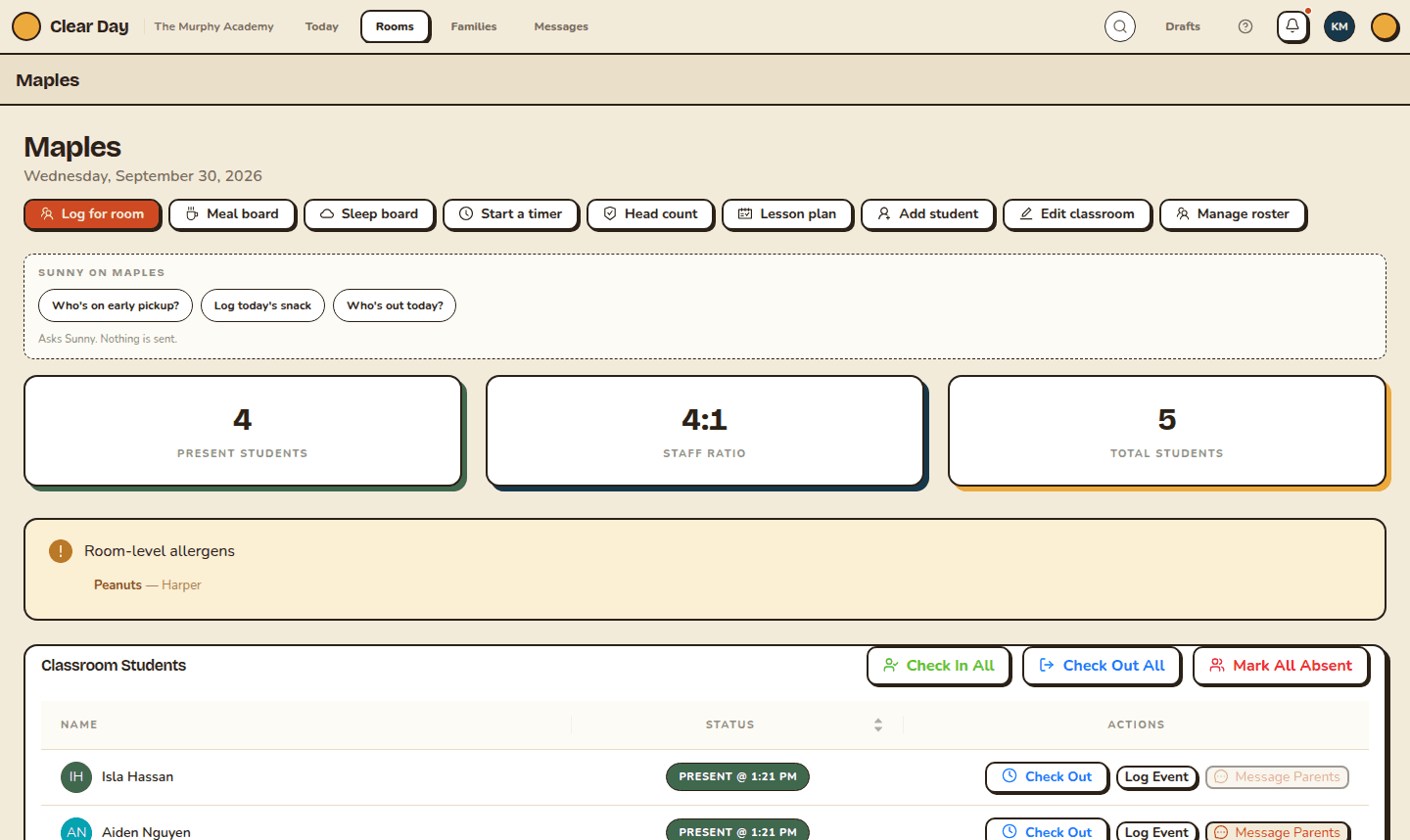
On the web, the header carries the room's daily actions: Log for room, Meal board, Sleep board, Start a timer, Head count and Lesson plan for staff, and Add student, Edit classroom and Manage roster for admins. Each has its own article:
- Log for the whole room
- Run classroom timers
- Plan your week's lessons
- Assign teachers and report planned absences
Below the header you'll see Present students, Staff ratio and Total students, then the roster. If any child in the room has a room-level allergy, a banner lists it. In the app the header shows a ratio pill instead ("4:1 · in ratio", "near limit" or "over ratio") and a Take a head count button. Attendance is covered in Manage daily attendance.
Related articles
- Manage daily attendance
Check children in and out, mark absences, take a head count and look back over a child's history.
- Place or move a child between rooms
Put an enrolled child in a room, move them to another, or log a short visit, without touching their enrollment.
- Assign teachers and report planned absences
Choose which teachers staff a classroom, and log a child's planned absence ahead of time so the day doesn't read as unexpected.
- How classrooms affect your bill
Run and Grow are billed per classroom. How adding or removing a room changes your next bill.
Last updated on