Understand attendance reports
Available on Run and Grow
How to read the attendance report, and exactly how its summary numbers are counted.
The Attendance report lists each child, each day: whether they were present, when they checked in and out, and how many hours they were in care. Use it to confirm a child's hours or pull numbers a licensor or funder asks for.
Open Reports, choose Attendance, set your dates and optional Classroom, and generate it. See Find and run reports.
The summary
Four numbers sit above the rows: Enrolled, Present, Absent and Rate. They change when you change the dates or classroom.
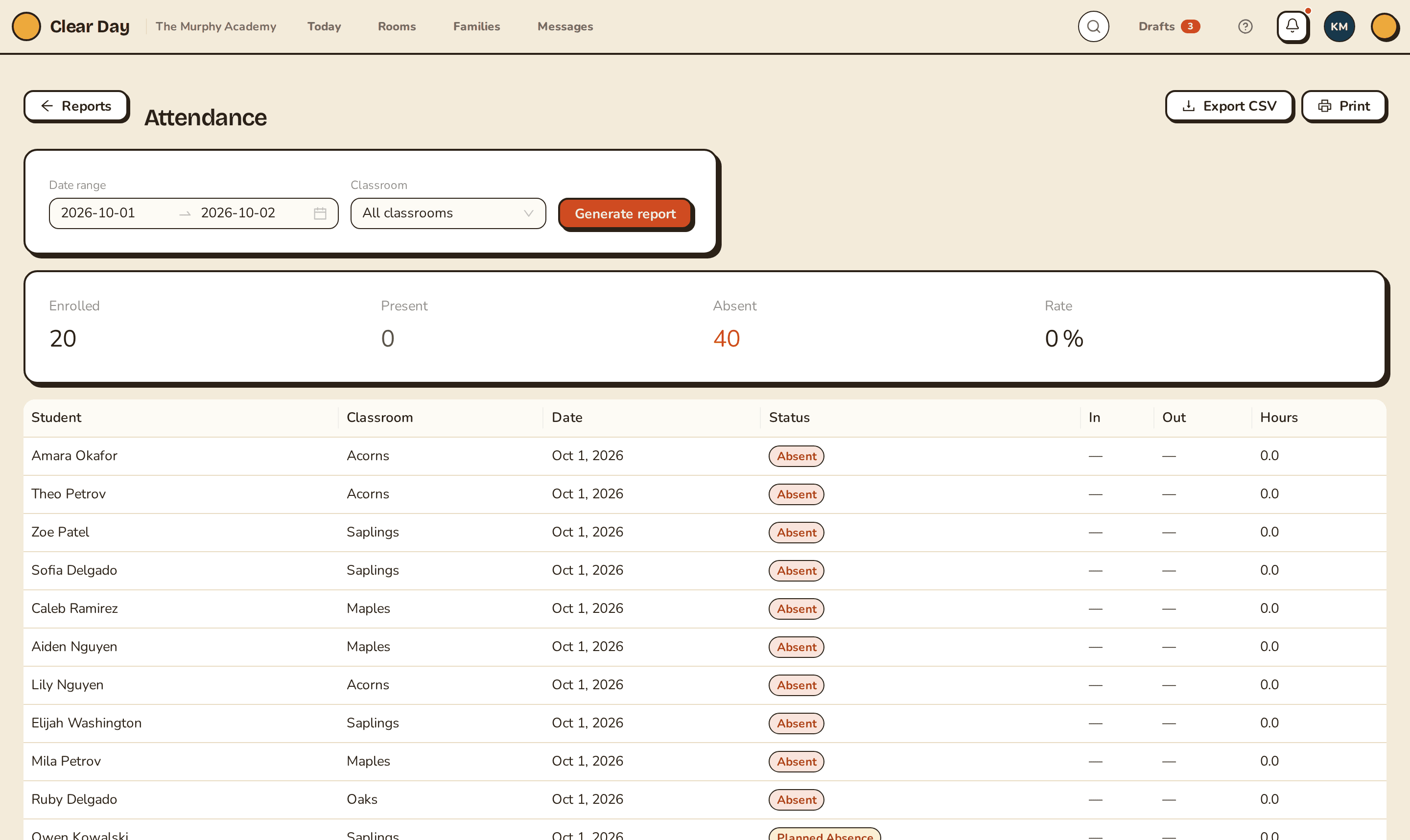
How the summary is counted
The summary counts child-days, not children. The report makes one row for every active student on every calendar day in your range, then:
- Present means at least one check-in that day. Everyone else is Absent.
- Rate is Present divided by Present plus Absent.
- Weekends and days you were closed are included, so they count as Absent for everyone. For a clean rate, run the report for a range of open days.
- A planned absence still adds to the Absent total. On the row it reads Planned Absence, but the summary doesn't separate it out.
- Only currently active students are counted. A child who withdrew partway through your range drops out of the earlier days too.
Rows
Each row has a status: Present, Absent or Planned Absence. To record a planned absence, see Manage roster and absences.
- In is the first check-in that day and Out is the last check-out. A dash means nothing is on file.
- Hours is time in care, added up across check-in and check-out pairs and shown to one decimal.
- Checked In By and Checked Out By record which staff member stamped each one. They appear only in the Export CSV file, which you can get on the web. See Export and print reports.
Related articles
- Find and run reports
Where reports live, what each report covers, and how to set a date range and classroom before you generate one.
- Export and print reports
Save any report as a CSV or send it to a printer from the web.
- Manage daily attendance
Check children in and out, mark absences, take a head count and look back over a child's history.
Last updated on