Find and run reports
Available on Run and Grow
Where reports live, what each report covers, and how to set a date range and classroom before you generate one.
Reports are for directors and school admins. Teachers don't see them. If you're on Free or Plus, the reports screen isn't part of your plan; the Unlock card appears if you open it.
Where to find them
- On the web: go to Reports (the address ends in
/admin/reports). The heading is Reports. - In the app: open the School tab, then Reports under Records.
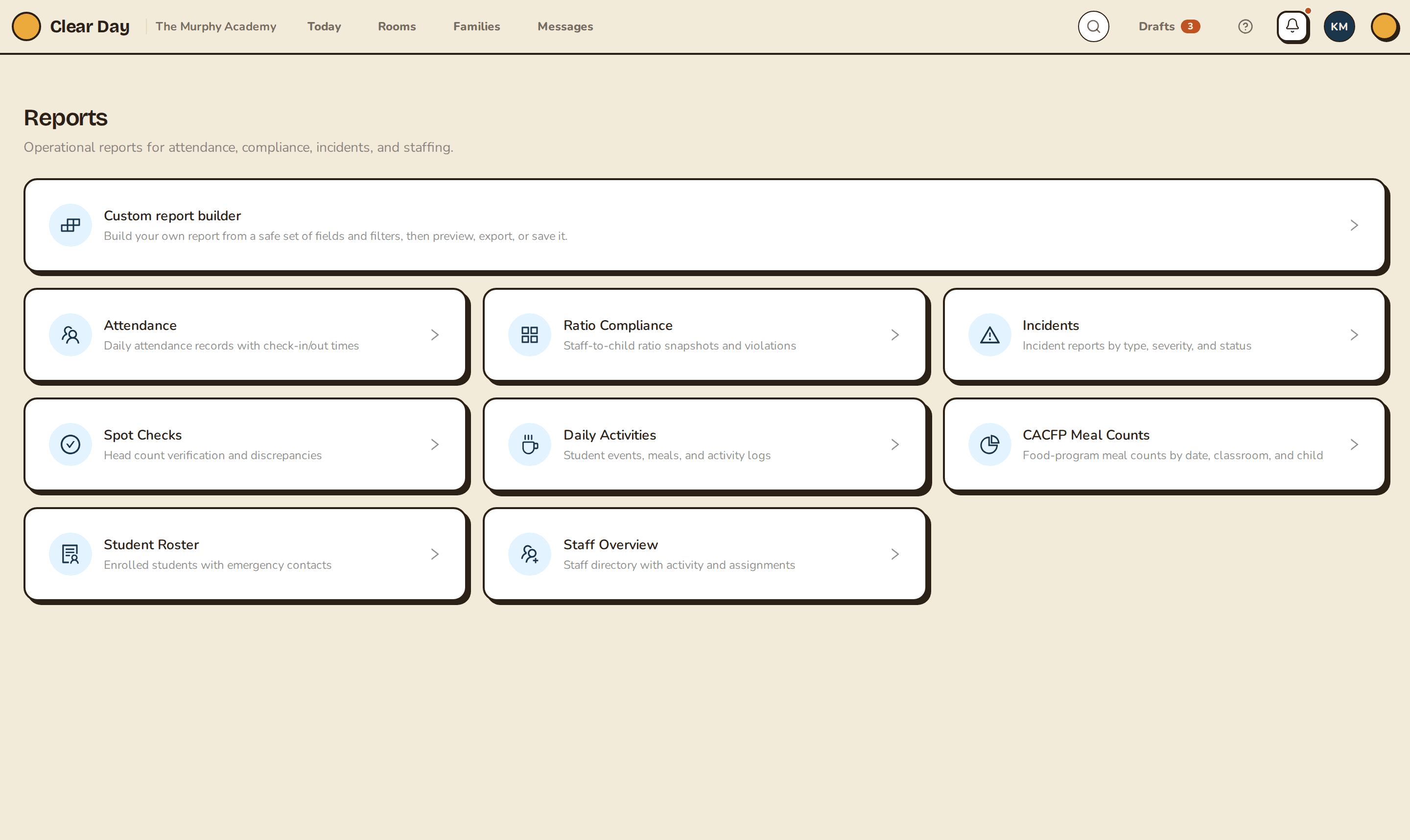
What's there
The hub lists nine reports:
- Attendance: daily check-in and check-out times
- Ratio Compliance: staff-to-child ratio snapshots and violations
- Incidents: incident reports by type, severity and status
- Spot Checks: head count verification and discrepancies
- Daily Activities: student events, meals and activity logs
- CACFP Meal Counts: meal counts by date, classroom and child
- Student Roster: enrolled students with emergency contacts
- Staff Overview: staff directory with activity and assignments
- Immunizations Due / Overdue: children with vaccines due soon or overdue. This one is rolling out: it appears once medical records are on for your school.
The immunizations card is a snapshot. For the always-current list, use the Immunization compliance dashboard.
On the web, the Custom report builder card sits alongside them for school admins. In the app, Saved reports runs the reports you built on the web. Both are covered in Use the custom report builder.
Run a report
Open a report, then narrow it before you read it.
Date range. Attendance, Ratio Compliance, Incidents, Spot Checks, Daily Activities and CACFP Meal Counts need a range. It starts at the first of this month and runs through today.
- On the web, set Date range, then select Generate report. Until you do, the page says "Pick a date range and generate the report."
- In the app, set From and To, then tap Generate report.
Classroom. Every report can be limited to one room. On the web, pick from Classroom (the default is All classrooms); once a report has run, changing the room reloads it. In the app, tap a classroom chip, or All to clear it, then generate again.
Reports with no range. Student Roster, Staff Overview and Immunizations Due / Overdue load as soon as you open them. On the web, select Refresh to pull the latest. In the app, pull down.
When it's empty or fails
An empty result reads "No data found for the selected filters." Widen the dates or go back to All classrooms. If a report errors, select Retry.
Ask in plain English
On the Grow plan you can type a question instead of building a report by hand. The app has the box on Saved reports; the web has it on the builder. See Use the custom report builder.
When the report looks right, export or print it.
Related articles
- Understand attendance reports
How to read the attendance report, and exactly how its summary numbers are counted.
- Ratio, incident and spot check reports
Read the Ratio Compliance, Incidents and Spot Checks reports, which only school admins can open.
- Export and print reports
Save any report as a CSV or send it to a printer from the web.
- Use the custom report builder
Build your own report from a safe set of fields and filters, preview it, then export to CSV or save it to run again.
- Check immunization compliance
See every active child with an overdue or due-soon required vaccine, in one always-current list.
Last updated on