Choose what Sunny prepares and who approves it
Available on Run and Grow
Decide which drafts Sunny prepares, whether teachers can approve notes to their own room, how long a send can be undone, and whether voice is on.
This is where a director sets Sunny's policy for the whole school. Every switch changes what Sunny drafts next time. None of them send anything.
Open Settings, then Sunny, on the web or in the app. Only school admins see it. Teachers can see the effect on a draft card ("waiting on" a director), but not the page.
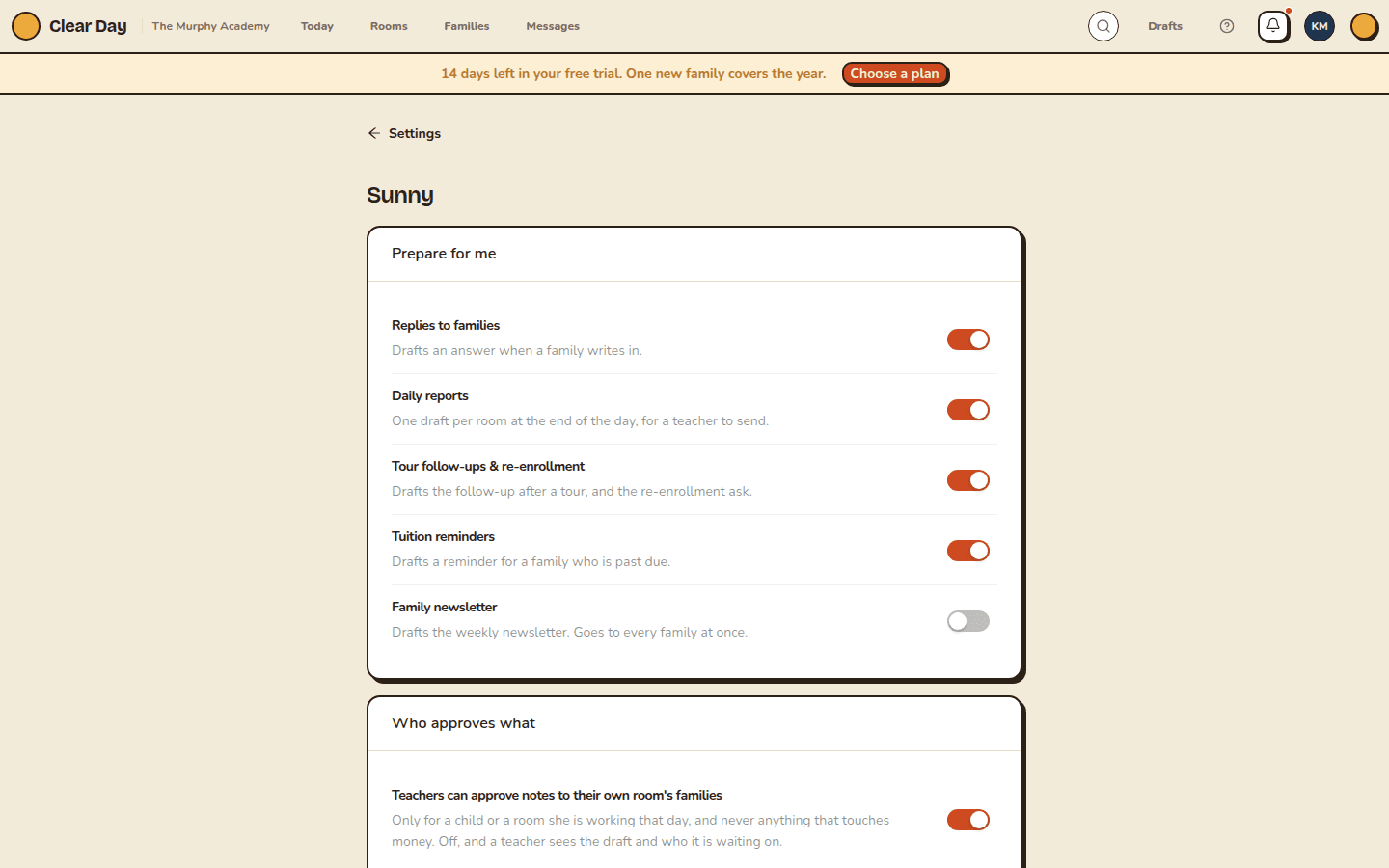
Prepare for me
Each switch lets Sunny draft one kind of thing. Turn one off and those drafts stop.
- Replies to families: drafts an answer when a family writes in.
- Daily reports: one draft per room at the end of the day, for a teacher to send.
- Tour follow-ups & re-enrollment: drafts the follow-up after a tour, and the re-enrollment ask.
- Tuition reminders: drafts a reminder for a family who is past due.
- Family newsletter: drafts the weekly newsletter. It goes to every family at once, so it is off until you turn it on.
A recurring job only runs if its switch is on. "Every Friday, draft the newsletter" does nothing while Family newsletter is off. See recurring work and notifications.
Who approves what
Teachers can approve notes to their own room's families is on by default. It covers a child or a room the teacher is working that day, and never anything that touches money. Off, and a teacher sees the draft and who it is waiting on.
Anything addressed to every family is a director's to approve. That is not a setting.
Undo
Choose 15s, 30s or 60s. A send is held for that long, so Undo really takes it back. The default is 30 seconds. See drafts wait for your team.
Voice
Hold the sun to talk lets you speak to Sunny. On the web, speech is turned into words in the browser and sent as text. The audio is not stored.
What you can count on
- Everything here prepares a draft. Nothing sends on its own.
- You can see who approved what, and when, under History in Sunny's menu. See work receipts.
- Turning something off stops the drafts. It does not delete anything.
The page shows who last changed it and when, for example "Changed by Dana · Sep 19, 6:04 pm". Each switch saves on its own, and a failed save shows its own message next to the switch.
Related articles
- Drafts wait for your team
Anything consequential arrives as a draft. You approve it by pressing and holding, you can undo a send for a short time, and nothing sends on its own.
- Recurring work and notifications
Set a job once ("every Friday at three, draft the newsletter") and control when Sunny is allowed to interrupt you.
- Work receipts: what Sunny did, and who approved it
Every job Sunny runs leaves one receipt with the steps it took, what it found, the outcome and the name of the person who approved it.
Last updated on
Drafts wait for your team
Anything consequential arrives as a draft. You approve it by pressing and holding, you can undo a send for a short time, and nothing sends on its own.
Work receipts: what Sunny did, and who approved it
Every job Sunny runs leaves one receipt with the steps it took, what it found, the outcome and the name of the person who approved it.