Your enrollment assistant
Available on every plan
Rolling out: if you don't see this yet, it isn't on for your school yet.
What families can ask Sunny on your website, where the answers come from, and how to see gaps, set limits and try it yourself.
Once your site is live, visitors can ask Sunny a question and get an answer marked "Sunny · AI". Sunny answers only from your published page and your school profile. If the answer isn't there, it says so and offers Leave your details instead. Their question then arrives in your leads inbox.
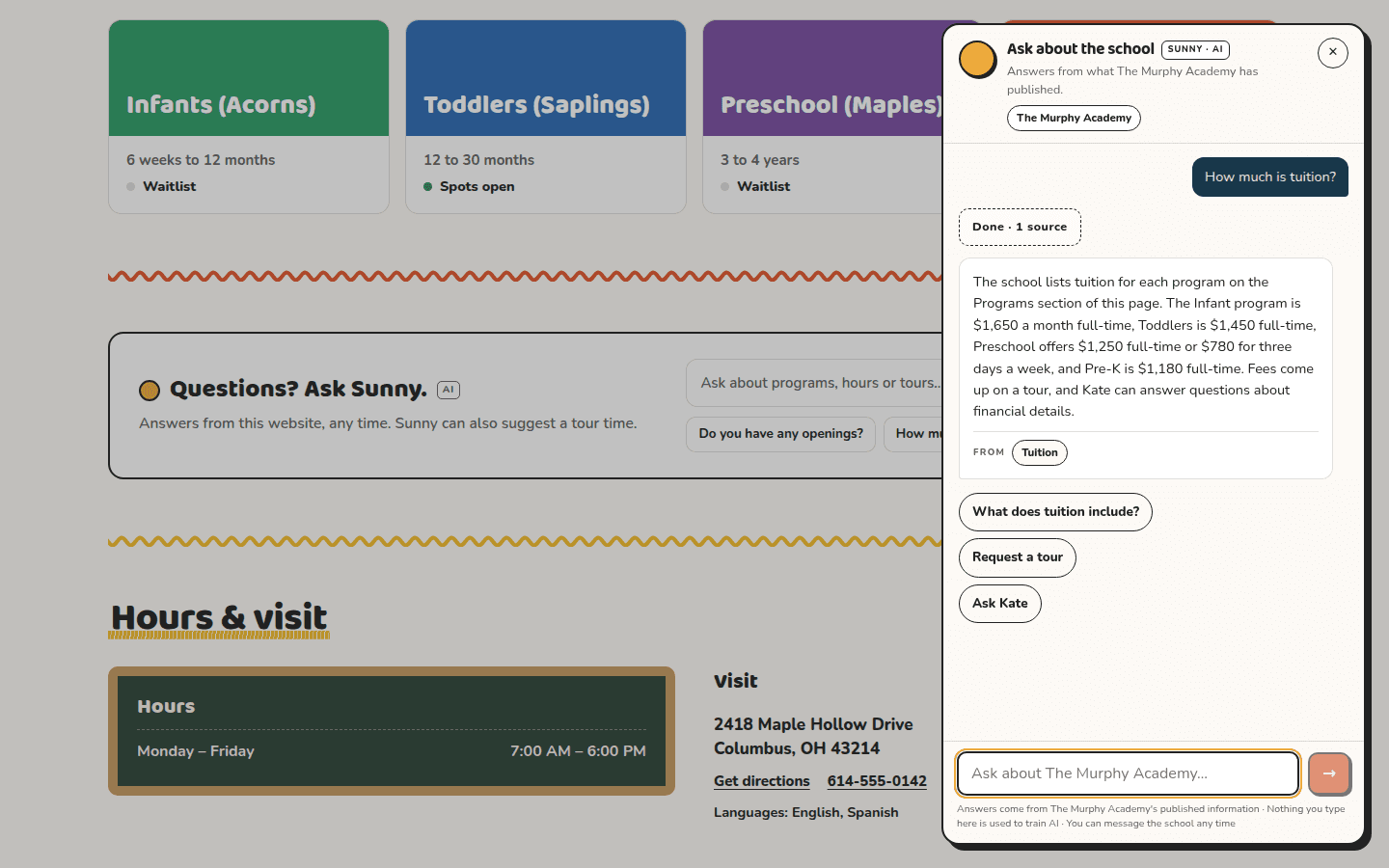
Sunny won't answer anything about a named child, health records, incidents, staff matters or another family. Those always go to you.
See what Sunny can answer
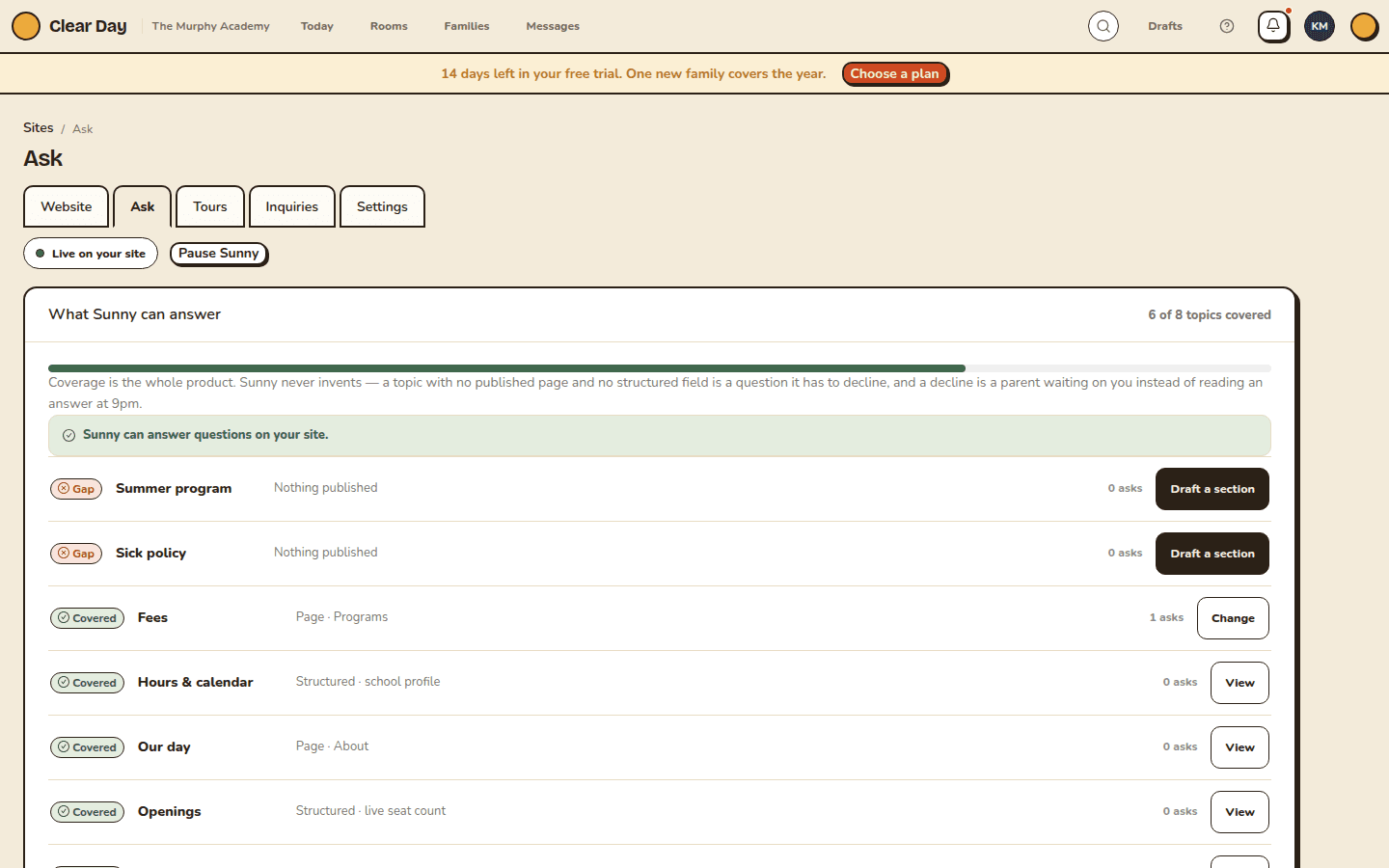
On the web, open Website, then the Ask tab. The board called "What Sunny can answer" lists eight topics: Hours & calendar, Our day, Openings, Fees, Staff & ratios, Summer program, Sick policy and Enrollment steps. Each is Covered, Partial, Drafted (written, but not published yet) or Gap. The count reads like "5 of 8 topics covered."
Each row has one button: Draft a section, Finish it, Update, View or Change. It takes you to Sunny's chat with that topic ready. A topic with nothing behind it is a question Sunny has to pass to you, so fill the gaps first.
Fees are never a gap. If you keep prices off your site, Sunny says fees are discussed on the tour. Turn on Quote fees if your prices are already on your site and you'd rather Sunny gave the number.
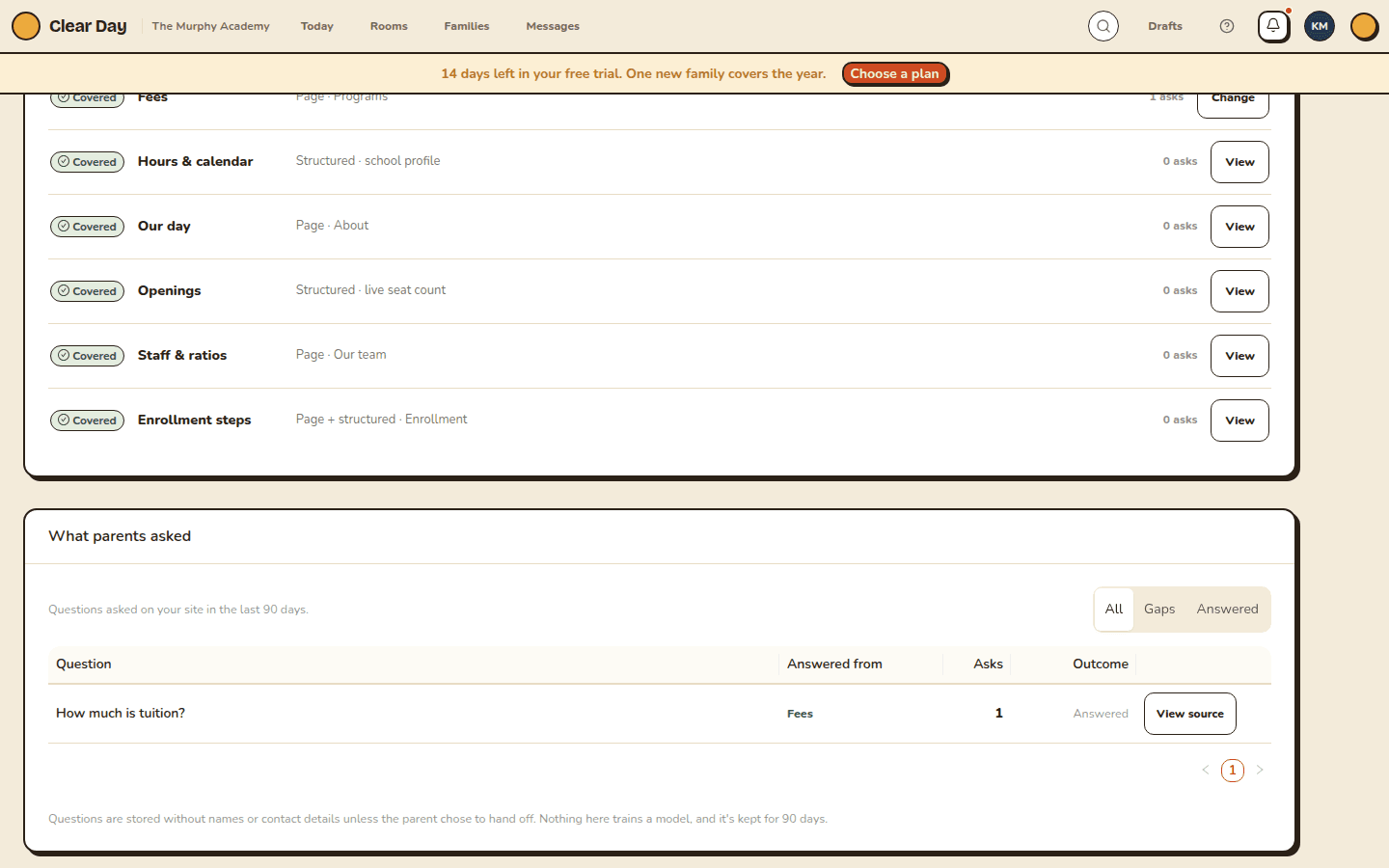
Below the board, "What parents asked" lists questions from the last 90 days. Filter by All, Gaps or Answered. On an unanswered one, choose Publish answer to add the missing fact. Questions are stored without names or contact details unless the parent chose to hand off, and they're kept for 90 days.
Set what Sunny may say
Open the Settings tab. The top switch, "Sunny is answering questions on your site," turns the assistant off. Off, the ask strip becomes a plain contact block.
Under "What Sunny may say," you'll find:
- Quote fees. Off until you turn it on.
- Say how many seats are open. Unless you're on Grow, Sunny uses the number you entered. Off, openings become "ask the school."
- Name staff. Only names on your published team page.
- Offer tour times. Needs tour hours. See Let families book tours.
- Answer in Spanish. Plus, Run and Grow. See Answer families in Spanish.
Voice has two choices: Plain and Warm. Both stay in the third person about your school.
Try it yourself
Choose Try your assistant on the Website page, or in the app under Settings, Website, Intake assistant. It runs against your current draft. Nothing you say creates a real lead, and it doesn't count toward your allowance.
Your monthly allowance
The Intake assistant card shows "Used this month" as a share of your allowance. Plus, Run and Grow get three times the Free amount.
When you reach it, the card reads "The assistant is paused until next month." The plain inquiry form takes over, so families can still reach you. The allowance starts over each month.
Related articles
- Answer families in Spanish
Let your website's assistant answer in Spanish, what stays the same, and what you'll see on Free.
- Your leads inbox
Where families who contact you through your website show up, how you're alerted, and what you can do with each inquiry on Free and Plus.
- Let families book tours from your site
Set your tour hours, block dates, accept a tour request, and see what the Free plan's limit of 4 bookings a month means.
- Ask a school a question on its website
How to ask Sunny about a school, request a tour or send a question from a Clear Day school website, and what happens next.
- What's included in the Free plan
What a Free school gets, the monthly limits on tours and calendar events, and what needs a paid plan.
Last updated on