Choose your web address and publish
Available on every plan
Rolling out: if you don't see this yet, it isn't on for your school yet.
Pick your clearday.school address, work through the publish checklist, and take your site live or offline.
Your site lives at yourschool.clearday.school. You choose the first part, and you publish when the checklist is clear. Only a school admin can do either.
On the web, both are on your Website page. In the app, open Settings, then Website.
Choose your address
Find the Web address box and type the name you want. Use letters, numbers and hyphens. As you type, it tells you one of these:
- "yourname is available."
- "yourname is taken." If there's a close match, it adds "yourname-2 is free."
- "yourname is reserved. Try another name."
- "Use letters, numbers and hyphens only."
Choose Change address, then confirm with Change it.
You can change the address freely until you publish. After that you get one change. The old address keeps redirecting, so links families already saved still work. Once you've used it, the page says "You've used your address change. Contact us if you need another one."
If your school has a listing in the Clear Day directory, you'll also see a switch to connect your site to it. Parents who find you there get a link to your site, and your site links back.
Publish
The publish card says where you stand: "Ready to publish," "Changes not live yet" or "Your site is live." Choose See checks to read the list. Each line is a check that passed, a warning or a stop.
Stops block publishing until you fix them:
- Text that still reads like a template, like "[school name]". Choose Fix.
- A fact from an uploaded document you haven't confirmed. Choose Confirm next to it, or Change it.
Warnings don't block you. They flag things families notice, like a program with no ages, no hours, no phone or email, a headline that runs long on a phone, tuition missing on a program, or a photo with no description. One warning is worth a look: lines Sunny wrote that you haven't read. Choose Show me, or publish with Publish anyway.
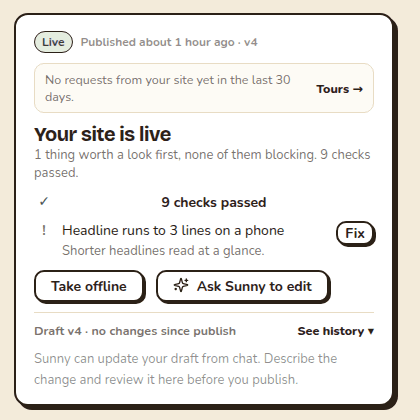
When you're ready, choose Publish my site. The first time, you'll see a "Your site is live" screen with your address and ways to share it: Text the link, Print a QR, and a link that explains how to add your school to Google Maps. It can take up to a minute to show up everywhere.
Later edits wait as Unpublished changes until you choose Publish changes.
If your school is asked to link its license record
Some schools have to link their state licensing record before publishing. If yours does, the publish card says your school isn't linked yet and shows Link my license record. Choose it, find your school in the list, and come back. If the page then says "Almost ready," we're confirming the link. That usually takes one business day, and we'll email you when your site can go live. You can keep editing meanwhile.
Take it offline
Choose Take offline, then Take it offline to confirm. Visitors see a short "not available" page until you publish again. The button then reads Put site back online.
If the card says your site is suspended, or your school account is inactive, you can't publish. Contact us and we'll sort it out with you.
Related articles
- Build your website with Sunny
Start a free school website, answer Sunny's questions, watch the page fill in, and change it later.
- Preview your draft and restore an older version
See your draft before it's live, share a private preview link, and go back to an earlier version of your site.
- Print a QR code or poster for your site
Make a printable sign, flyer or handout with a QR code that sends families to your website, and see which one brings inquiries.
- Manage your school profile
Keep your school's name, address, phone, state, time zone and operating hours current. Licensing, your website and daily operations read from them.
Last updated on
Preview your draft and restore an older version
See your draft before it's live, share a private preview link, and go back to an earlier version of your site.
Print a QR code or poster for your site
Make a printable sign, flyer or handout with a QR code that sends families to your website, and see which one brings inquiries.