Build your website with Sunny
Available on every plan
Rolling out: if you don't see this yet, it isn't on for your school yet.
Start a free school website, answer Sunny's questions, watch the page fill in, and change it later.
Sunny builds your school's one-page website from a short conversation. You answer, it writes, and nothing goes live until you publish. Only a school admin can build the site.
Start
- In the app, choose Build a free website on the "Where to first?" screen.
- On the web, start from the free website page at useclearday.com. It opens sign-up with the website path selected.
- Already have an account? Open Website and choose Set up my site.
A school that starts with Build a free website begins on the Free plan. There's no trial and no card.
After sign-up you'll be asked to find your school in the state licensing list, so Sunny can start from your address, phone and license. If it isn't listed, choose None of these, I'll enter it myself. Then the builder opens.
Answer Sunny's questions
Sunny asks one question at a time. Tap an option, or type your own answer in the box that says "Type your answer". Typing works for anything: "Toddlers 1:4 with a waitlist" is enough for Sunny to fill in a program.
If you already have a website, the first screen asks "Do you already have a website?" Choose No, build me one for a full site. Choose Yes, I just need an enrollment page to get a single page that links back to your current site.
The page fills in beside the conversation as you answer. On a phone, choose See preview. The list called "Your page so far" shows what's there: Hero, Programs, Hours, About, FAQ, Photos and Contact. A solid ring means the page needs it. A dashed ring means it's nice to have.
Prefer to type it yourself? Choose Edit sections to fill in each part by hand.
Not done? Choose I'll finish later (in the app, Finish later). Your draft is saved and waiting when you come back.
What Sunny writes for you
Some lines Sunny writes from your answers instead of copying your words. Each one is marked "DRAFTED · from your answers". Read it, then choose Keep, or ask for a Shorter, Warmer or Say the street version. Publishing works either way, but the publish checklist warns you if you haven't looked at every line Sunny wrote.
Sunny may also tidy headings and wording after the first draft. It lists every change and gives each an Undo. It never touches your colors or font.
Change it later
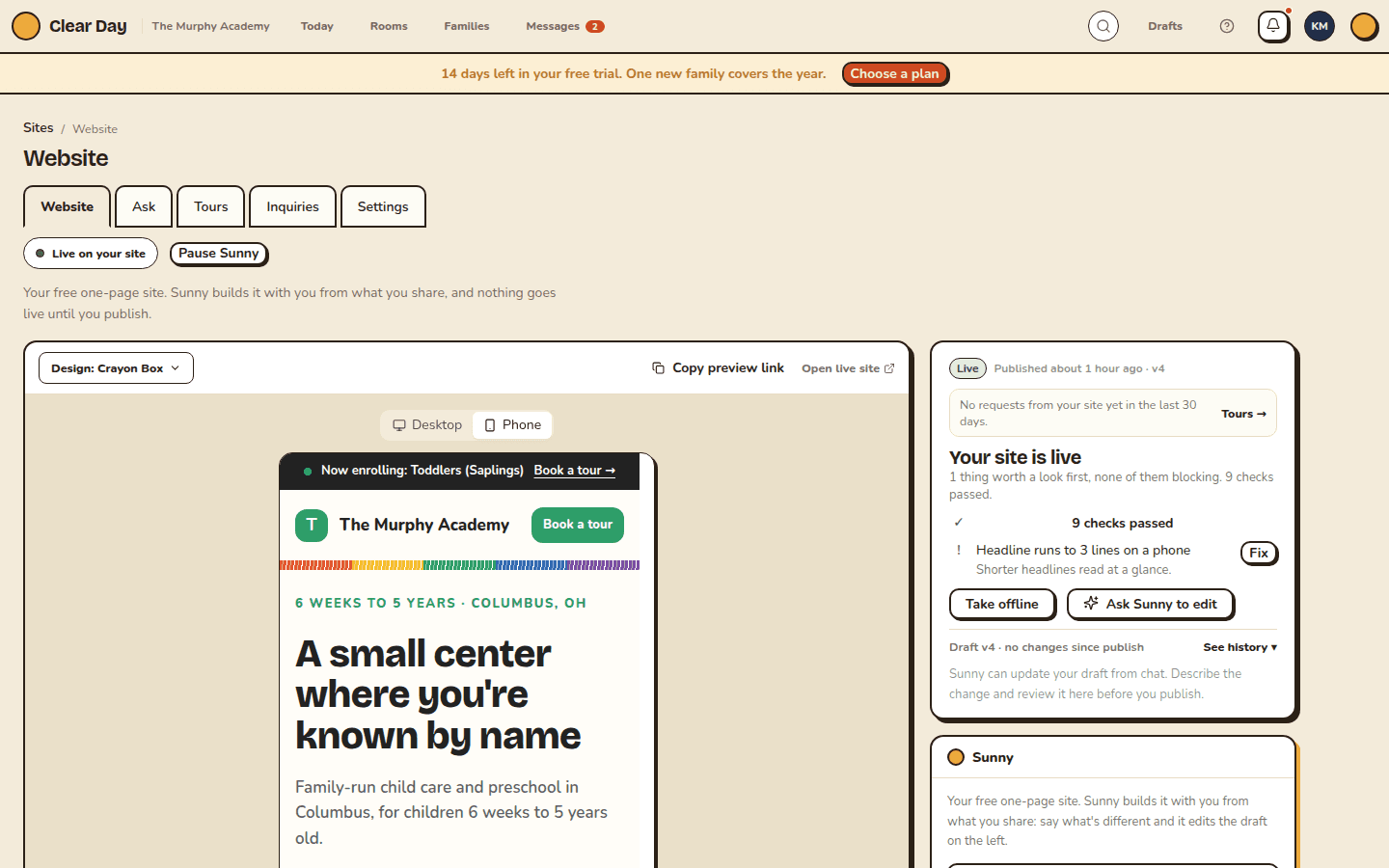
Open Website, then choose Change something (in the app, Edit with Sunny). Type what's different, like "We're closed the week of July 4." Sunny edits the draft. Your live site doesn't change until you publish.
Keep it current lists the changes that come up most: Our hours changed, We're full / enrolling again, Add summer camp and Something else. Each one opens the chat with the question already asked.
Your hours and phone number come from your school profile, so changing them there updates the site.
Next
Add photos and choose a design, then choose your address and publish.
Related articles
- Add facts from your handbook or flyer
Upload a parent handbook, welcome packet or brochure, review what Sunny found, and choose what goes on your site.
- Photos, look and design presets
Add your own photos or stand-in photos, and change your site's look with a preset or a sentence to Sunny.
- Choose your web address and publish
Pick your clearday.school address, work through the publish checklist, and take your site live or offline.
- Preview your draft and restore an older version
See your draft before it's live, share a private preview link, and go back to an earlier version of your site.
- What's included in the Free plan
What a Free school gets, the monthly limits on tours and calendar events, and what needs a paid plan.
Last updated on
Find your way around Free and Plus
What you see when you sign in on Free or Plus, where your website, leads, calendar and plan live, and what isn't there.
Add facts from your handbook or flyer
Upload a parent handbook, welcome packet or brochure, review what Sunny found, and choose what goes on your site.