Your leads inbox
Available on every plan
Where families who contact you through your website show up, how you're alerted, and what you can do with each inquiry on Free and Plus.
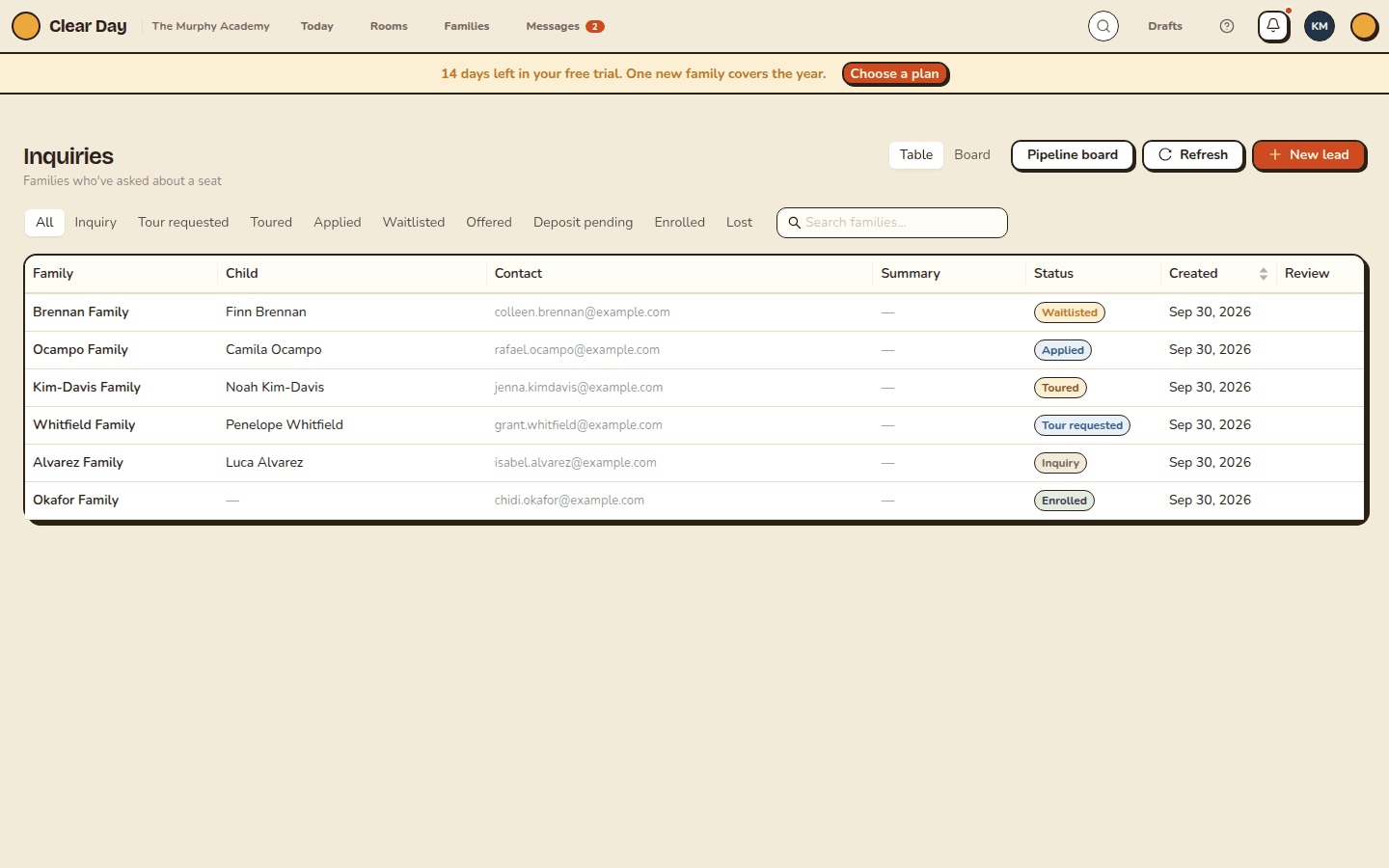
Every family who reaches out through your site becomes an inquiry. That includes the contact form, a tour request, a waitlist sign-up, and a question Sunny passed to you. Scans of a printed QR code land here too.
How you hear about one
When an inquiry arrives, school admins get a push notification, "New inquiry," and an email with a link to it. If one admin is assigned to the family, only that person is notified.
Find your inquiries
- On the web, choose Leads in the top navigation. The page is called "Inquiries," with the line "Families who've asked about a seat." Filter by status, or use Search families....
- In the app, open the Leads tab.
- From your website, the Inquiries tab lists the same families with the question that started each one. Its filters are All, Needs you, Tours and Waitlist.
An empty page says "Inquiries from your website land here. Share your address to get the first one." The Share my website button opens your Website page.
Open an inquiry
An inquiry shows the family's name, their email and phone, what they asked, the program and start date they mentioned, and where it came from. A printed QR shows its place, like "Front door sign," so you can see which one works.
Each inquiry also has a type tag: Question, Tour requested, Tour scheduled, Waitlist or In pipeline. Question and Tour requested are the ones that need you.
What you can do depends on the type:
- Tour requested. Choose Accept with the time they asked for, or Pick another time. Clear Day books the tour and emails the family a confirmation if you have their email. See Let families book tours.
- Tour scheduled. Reschedule or Cancel tour.
- Waitlist. Invite to tour anyway when a seat looks close.
- Question. Reply from your own email or phone. Clear Day doesn't send the reply for you on Free or Plus, so use the contact details on the inquiry.
To close one that isn't right for you, choose Not a fit. Open full record shows the family, child and inquiry details in one place. There, Status moves an inquiry along and Mark as lost… closes it with a reason. There's no separate "handled" button, so changing the status is how you show you've dealt with it.
What Grow adds
Every plan has this inbox. Grow adds the pipeline board, a New lead button for families who didn't come through your site, AI suggestions for what to do next, and applications, waitlist and offers. On every other plan you'll see a locked Unlock pipeline button where those would be. See Manage your enrollment pipeline.
Related articles
- Your enrollment assistant
What families can ask Sunny on your website, where the answers come from, and how to see gaps, set limits and try it yourself.
- Let families book tours from your site
Set your tour hours, block dates, accept a tour request, and see what the Free plan's limit of 4 bookings a month means.
- Work your enrollment pipeline
See every inquiry as a board, a list or a seat forecast, open a family to see where they stand, and close out the ones who don't enroll.
- Schedule tours and send follow-ups
Book a family's tour, write down what mattered, and send a warm follow-up a couple of days later.
- Print a QR code or poster for your site
Make a printable sign, flyer or handout with a QR code that sends families to your website, and see which one brings inquiries.
Last updated on