Work your enrollment pipeline
Available on Grow
Rolling out: if you don't see this yet, it isn't on for your school yet.
See every inquiry as a board, a list or a seat forecast, open a family to see where they stand, and close out the ones who don't enroll.
Every inquiry becomes a family in your pipeline. On the web, open Enrollment from the top navigation. In the app, open the Grow tab.
On schools with the newer navigation there is no Enrollment button: Families is the one that lights up on these pages. Open the pipeline from the Enrollment pipeline tile on Today (view the full pipeline), then use Board, List and Seats at the top.
On Free or Plus? Your inquiries and tour requests are in your website area, not here. See Your leads inbox.
Board, List and Seats
The pipeline has three views of the same families. On the web, a switcher at the top flips between them.
- Board is a card for each family, in a column for where they are. Use it to move families forward.
- List is the Inquiries page: a table you can search and filter by status.
- Seats puts a dollar figure on your open seats, room by room and month by month, with your stage-to-stage conversion and where families came from. Pick 30d, 90d, 1y or All time.
In the app, Inquiries is the list and Pipeline shows stage counts, conversion and sources. There is no board in the app.
Work the board
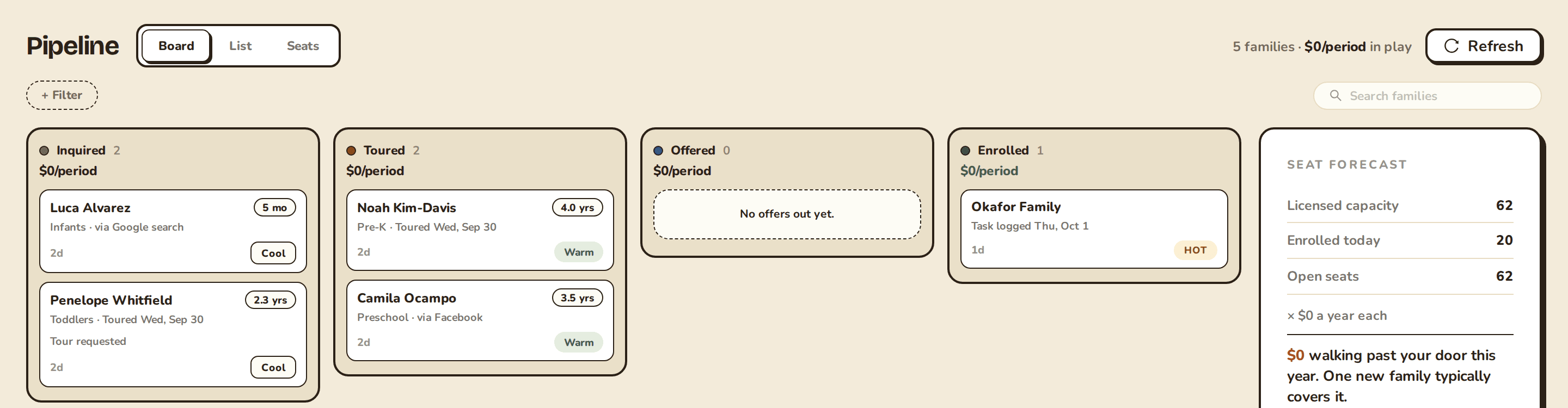
The board has four columns: Inquired, Toured, Offered and Enrolled. Applied and waitlisted families sit in Toured, and a family with a deposit pending sits in Offered. Each column shows a count and what those seats are worth.
Each card shows the child's age, program and how long the family has been in the stage, plus a chip for how likely they are to enroll: Hot, Warm, Cool or Cold.
Drag a card to the next column to move a family forward. Click a card to see their timeline and open tasks without leaving the board. A card turns red with "No reply yet" once a family has sat in a stage for more than 7 days.
Use + Filter to narrow the board by room fit, age band, start month, source, owner, or how many days a family has been quiet. Show the Waitlisted column in that menu adds a column for waitlisted families.
If the Board tab looks grayed out, it isn't on for your school yet. List and Seats cover the same families.
Open a family
Click a family on the list, or open a card from the board, to see the full page:
- Next best action: Sunny's suggestion and the reason for it. It isn't always there.
- Status: change it from the menu.
- Actions: Start application, Add to waitlist and Extend offer, with the family already filled in.
- Family, Child and Inquiry: contact details, program, desired start, source and the original message.
If you see Inquiry matched an existing family, choose Add as contact (same household), Different family (split them apart) or Same person (dismiss the match).
Close out a family who doesn't enroll
Choose Mark as lost… and pick a reason: Cost, Chose competitor, Schedule, Location, No response, Changed plans or Other. Add a competitor name and a note if you like. These reasons feed Withdrawals and lost inquiries, so pick the real one.
Sparks
A spark is a small chip on a card that flags something worth your attention, like a family who has gone quiet. Dismiss it, or snooze it for 1 week, 2 weeks or 1 month.
Related articles
- Schedule tours and send follow-ups
Book a family's tour, write down what mattered, and send a warm follow-up a couple of days later.
- Process applications and send offers
Review enrollment applications, move them through their statuses, and send offers families can accept, with a deposit and an e-signature if you want one.
- Manage your waitlist and class offerings
Keep your waitlist in order by program and year, then open seats to your current families before the public sees them.
- Your leads inbox
Where families who contact you through your website show up, how you're alerted, and what you can do with each inquiry on Free and Plus.
Last updated on
Scheduled family emails
The end-of-day report and the weekly family digest go out on a schedule, not as Sunny drafts. Here is what controls each one.
Collect inquiries with an interest form
Build an inquiry form, publish it, and paste it into your own website so every response lands in your pipeline as a new family.