Process applications and send offers
Available on Grow
Review enrollment applications, move them through their statuses, and send offers families can accept, with a deposit and an e-signature if you want one.
Applications hold a family's forms and documents. Offers carry the terms they accept. Both are under Enrollment on the web and the Grow tab in the app.
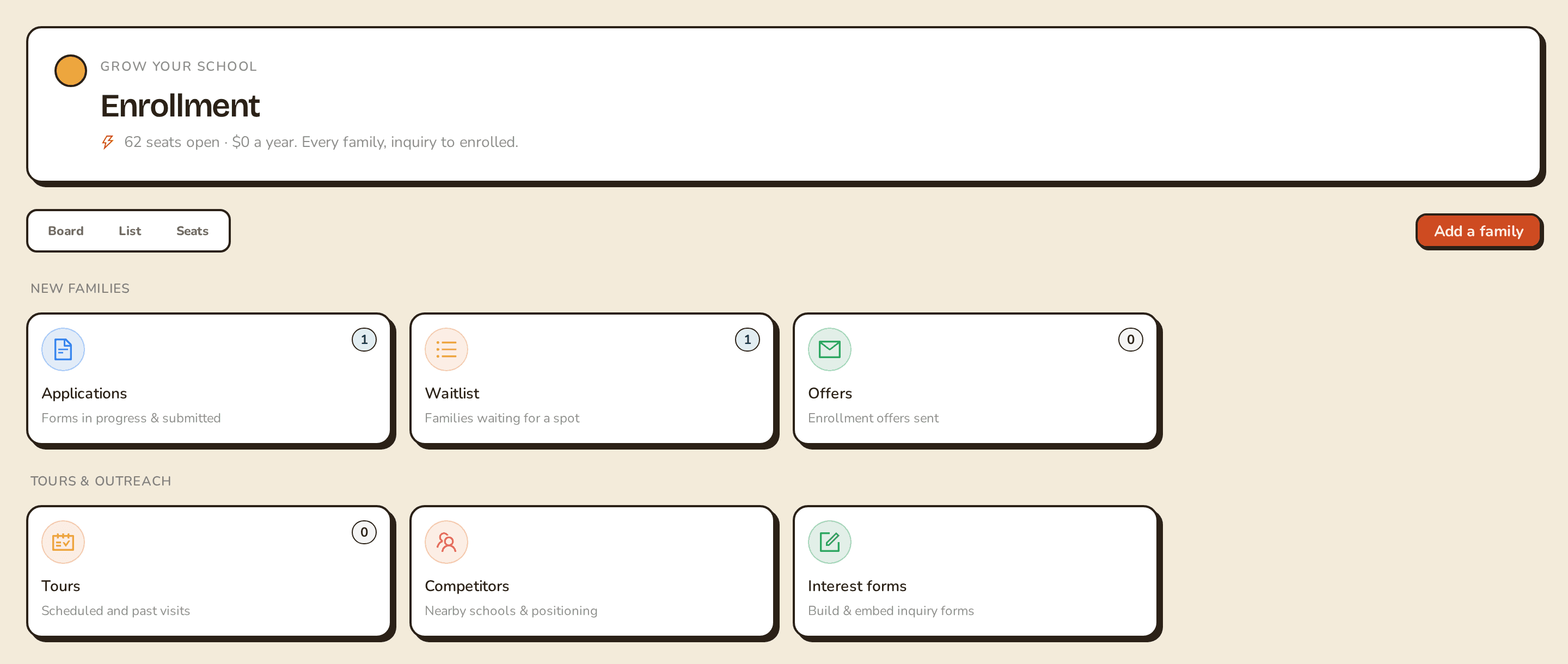
Applications
Open Applications to see every application with its child, program, submitted date and status. You can filter by status. The statuses are Draft, Submitted, Under review, Approved, Waitlisted, Offered, Enrolled, Withdrawn and Rejected.
To start one, open a family from your pipeline and choose Start application. The family carries over. Pick the children it covers, add the Desired program, Desired start date and Notes, then submit.
Open an application to work it:
- Change status (the Status button in the app) moves it along. The decision note you add shows under the status.
- Attach document takes a JPEG, PNG, HEIC or WebP image up to 10 MB, like a photo of a signed form.
- Extract fields from document reads an attached document and pulls out the key fields. See Import families and capture intake data.
Send an offer
From a family in your pipeline, choose Extend offer. Fill in:
- Program
- Start date
- Offer expires
- Deposit (USD)
- Terms / note
Then choose Send offer (Send in the app). The family moves to Offered in your pipeline.
Offers lists what you've sent. Outstanding shows offers still waiting on a family, and All shows the rest.
Accept, decline or rescind
Open an outstanding offer to act on it:
- Accept turns the offer into an enrolled student.
- Decline closes it. You can add a reason.
- Rescind pulls it back so the family can no longer accept.
- Request signature sends the agreement for e-signature.
In the app, Send link to parent also emails the family a link to review and respond.
Once an offer is no longer outstanding, there's nothing left to act on.
Request a signature
You need an e-signature provider connected first. If you haven't, the window points you to E-signature setup, where you connect your DocuSign or Dropbox Sign account. Then enter the parent's name and email, confirm the document name, and choose Send via provider.
Clear Day gives you a signing link to share, but the signature itself lives with your provider. Check the envelope there if a family says they didn't get it.
Next
After a family accepts, put them on a billing plan.
Related articles
- Work your enrollment pipeline
See every inquiry as a board, a list or a seat forecast, open a family to see where they stand, and close out the ones who don't enroll.
- Manage your waitlist and class offerings
Keep your waitlist in order by program and year, then open seats to your current families before the public sees them.
- Put a family on a billing plan
Assign a billing plan to a family, preview their next 90 days of invoices, and pause, resume or end it when things change.
Last updated on