Notification settings
Available on every plan
Pick which Clear Day alerts you get, set quiet hours, control ratio alerts, and unmute conversations.
What you can change here depends on your plan. On Free and Plus, the important alerts simply arrive and there is nothing to set. On Run and Grow, you pick which alerts reach you and when; incident and head-count alerts always come through, and quiet hours never silence them.
Open Settings, then Notifications.
What you see depends on your plan. Free and Plus schools have no rooms, attendance or messaging, so Categories, the Safety card and Muted conversations don't appear. Instead a What reaches you card lists what does arrive: new inquiries and tour requests (by email and as a push in the app) and a reminder when registrations are waiting. None of those have a switch, so a family is never missed, and there are no quiet hours to set. The rest of this page is for Run and Grow schools.
Categories
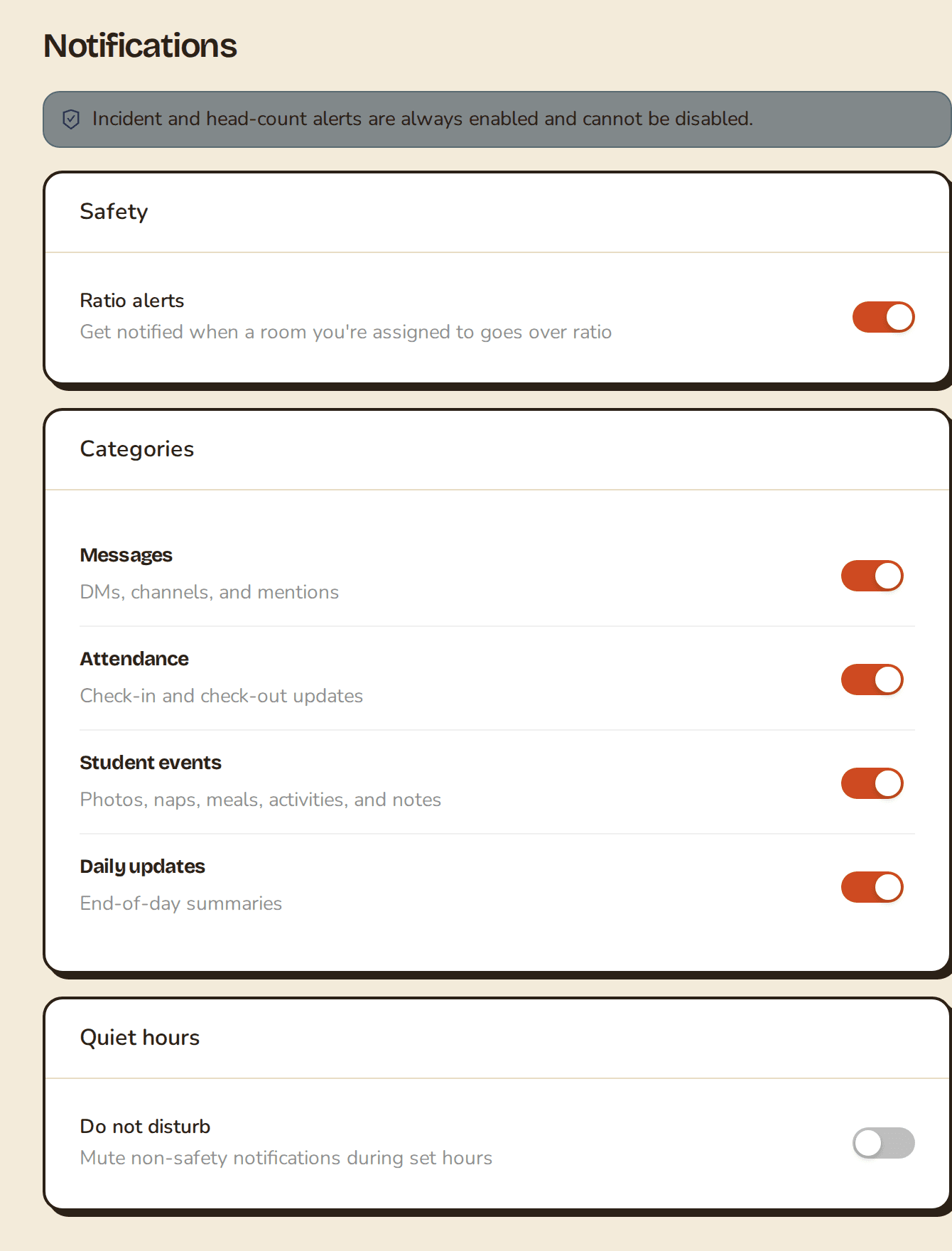
Under Categories, flip the switch beside each one. Each switch saves as you flip it. A switch turns the push for everything in that category on or off, and it doesn't change any email you get.
| Category | What it covers |
|---|---|
| Messages | DMs, channels and mentions |
| Attendance | Check-in and check-out updates |
| Student events | Photos, naps, meals, activities and notes |
| Daily updates | End-of-day summaries |
Ratio alerts
Teachers and admins see a Safety card with one Ratio alerts toggle: "Get notified when a room you're assigned to goes over ratio." It's on by default, and turning it off only affects you.
An admin can also mute ratio alerts for a whole room from the classroom's edit form, which silences that room for everyone. See Manage classrooms. Parents don't see this card.
Quiet hours
Quiet hours mute everything except safety alerts during a window.
- Under Quiet hours, turn on Do not disturb.
- On the web, set Start and End. Times move in 5-minute steps and show in 12-hour form, like 10:00 PM to 7:00 AM.
- To end quiet hours, turn Do not disturb off.
In the app, turning it on uses 10:00 PM to 7:00 AM. To change those times, use the web.
Muted conversations
A muted direct message or channel appears under Muted conversations, which only shows when you've muted something. Select Unmute beside it. In the app, confirm Unmute when asked.
Buttons on iPhone and iPad notifications
Some pushes have buttons, so you can act without opening the whole app:
- Message pushes have Reply.
- Incident pushes have Acknowledge and View.
- Sunny decision pushes have Review and Not now. Not now moves the card to Later without opening the app. There's no approve button on purpose: approving happens inside the app.
If a category is on and nothing arrives, see Notifications aren't arriving.
Related articles
- Notifications aren't arriving
Push or email going quiet? Check your phone's permissions, your Clear Day settings, and email delivery.
- The notification center
Use the bell to see recent activity, and see where each tapped push notification takes you.
- Find and read your conversations
How the Messages inbox is organized, how to search it, and how to see conversations you were not added to.
Last updated on