Manage your plan and billing
Available on Plus, Run and Grow
Update your card, see invoices, cancel or resume your plan, and what to do when a renewal fails.
This is your school's bill to Clear Day, not tuition. Only a school admin can manage it. Your card details live with Stripe and never touch Clear Day.
You need a billing account, which is created when you first check out. A school on Free, or one still on its trial, has none. Choosing a plan sets one up. See Choose or change your plan.
Open your billing account
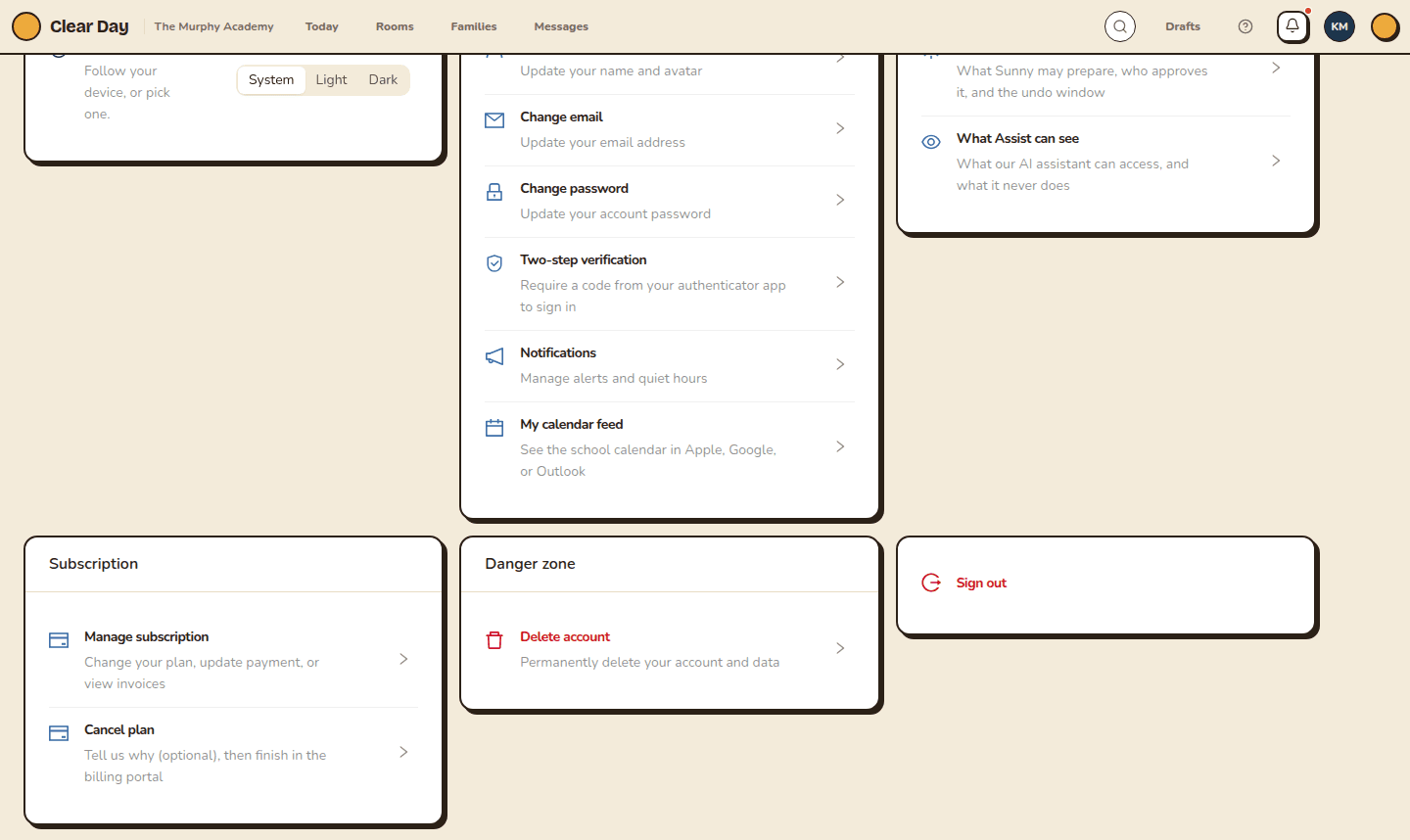
- Web, Run and Grow: open Settings. In the Subscription card, click Manage subscription.
- Web, Plus: open Billing in your navigation, headed "You're on Plus," and click Manage billing.
- App, Run and Grow: open Settings and tap Manage subscription.
- App, Plus: open the Billing tab and tap Manage billing details.
Each opens Stripe's billing portal. In the app it opens in your phone's browser, already signed in.
Update your card
In the portal, choose the option to update your payment method and enter the new card. Clear Day only learns that a working card is on file.
See invoices
The portal lists every charge with an invoice and receipt you can download. It's the record to hand a bookkeeper.
Switch between Run and Grow
The portal isn't where you change plans here. Use the plan cards instead. See Choose or change your plan.
Cancel your plan
- On the web, click Cancel plan in the Subscription card. In the app, tap Cancel plan at the bottom of Plan & billing.
- A "Before you go" prompt asks why. Telling us is optional. Keep my plan closes it.
- Click Continue to cancel (in the app, Other reasons — continue). The portal opens, and you finish canceling there.
Canceling ends your plan at the close of the period you've already paid for. Until then you keep full access, and a banner says "Your plan is scheduled to cancel on" the date. Every school admin gets an email confirming the date.
To resume, open Manage subscription (or Manage billing details) and resume the plan before that date. Admins get a second email. Upgrading your plan also resumes it.
If your plan is Plus and it ends, the school goes back to Free and keeps its website and leads.
Canceling your plan doesn't close your school's account. For that, see Delete your account.
If a renewal fails
You keep using Clear Day while Stripe retries the charge over the next few days.
- Web: admins see a banner, "We couldn't process your last payment. Update your card to keep your subscription active." Click Update payment.
- App: the banner reads "Payment failed. Update your card to keep access." Tap Update card. You can't dismiss it.
Both open the billing portal. Once the new card is in, the next retry clears the balance. If the card is never fixed, the subscription ends and Clear Day asks you to choose a plan again.
Related articles
- Choose or change your plan
Where to find the plan cards, what the buttons do, and how to check out or switch plans on the web and in the app.
- The Plus plan
What Plus adds to Free, how to buy it, and what happens if you end it.
- How classrooms affect your bill
Run and Grow are billed per classroom. How adding or removing a room changes your next bill.
- Clear Day plans at a glance
Free, Plus, Run and Grow side by side. What each plan includes, what it costs, and which school it fits.
Last updated on