Create your school
Available on every plan
Create your account, confirm your email, find your school and set up its profile, on the web or in the app.
Setting up your school takes one sitting. You'll create an account, confirm your email, find your school, and fill in its profile. Then you bring your data over, add classrooms and invite your team. Those steps have their own articles.
If you're joining a school that's already on Clear Day, see Join an existing school.
Choose how to start
In the app, tap Get started on the Welcome screen. A screen headed "Where to first?" offers four cards: "Create a new school," "Build a free website," "Join as staff" and "I'm a parent." Pick the one that fits. Back lets you switch cards. On the web, go straight to the sign-up page.
- Create a new school starts a 14-day trial of Run and Grow. No card. See Your 14-day free trial.
- Build a free website starts you on the Free plan. You can start one 14-day trial later, from the Unlock sheet or the Billing page. On the web you find your school next, then build your website. In the app you go from confirming your email straight to building it. Either way you skip the photo, data, classroom and team steps below, and land on your Free home. See What's included in the Free plan.
Create your account
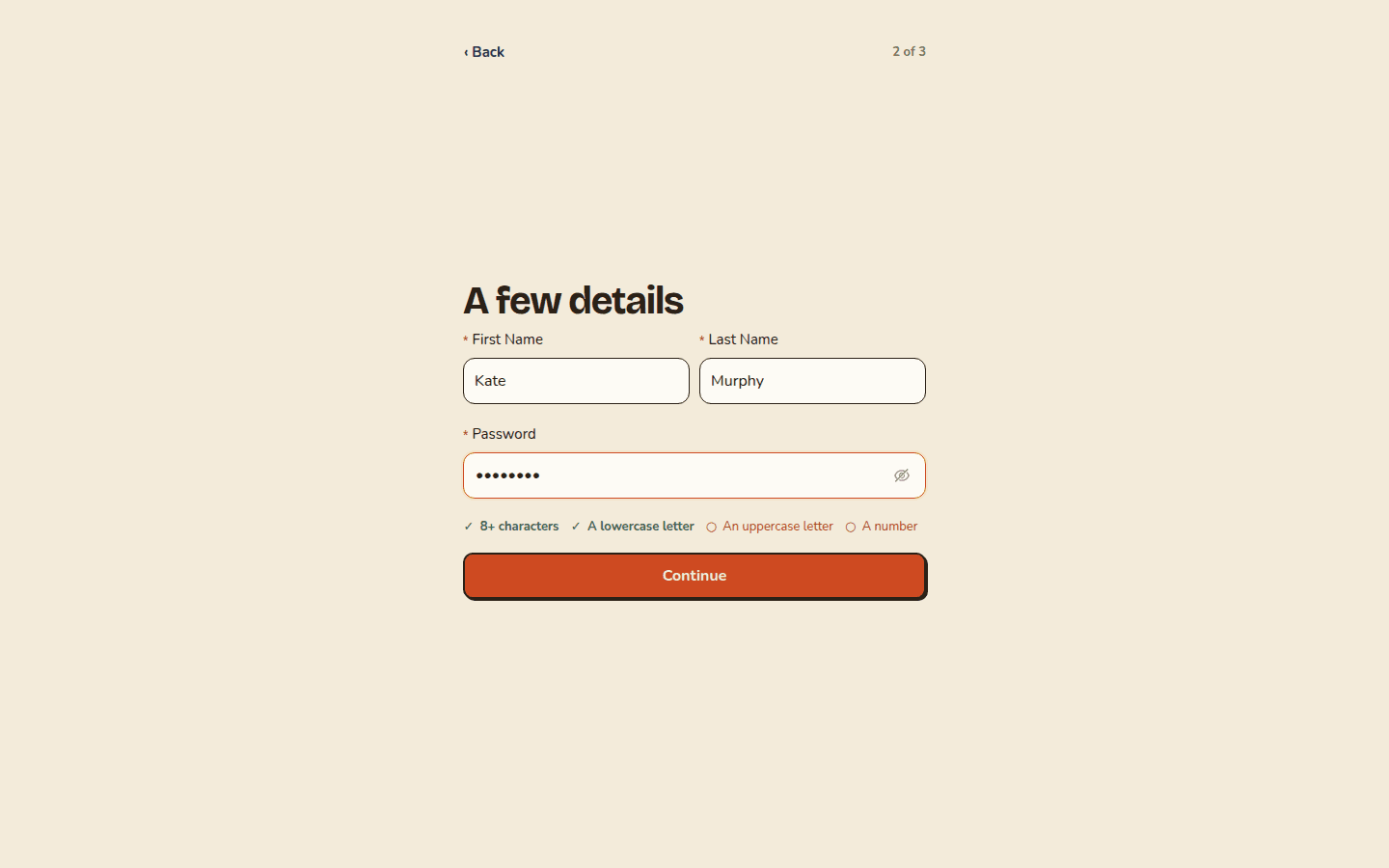
- On the web, start with your email on "Create your account" and click Continue. The 6-digit code goes out as soon as you do. Then "A few details" asks for your first and last name and a password. In the app it's one page, "Let's get you set up," with your name, email, a password and a Confirm password field. Tap Continue, and the code goes to your email.
- On "Check your inbox," type the code. On the web, click Create my account. In the app, tap Verify.
If the code doesn't arrive, check spam. You can ask for a new one after a 30-second wait. Resend code counts down until then. Sent to the wrong address? On the web, use Change beside your email.
Password rules
Your password needs all four:
- At least 8 characters
- A lowercase letter
- An uppercase letter
- A number
It can be up to 72 characters. The sign-up page checks each rule as you type.
Add a photo
The photo page reads "Add a photo." Upload one so your team knows who's who, or tap Maybe later.
Find your school
"Find your school" searches public state licensing records. Pick your state if it asks, then start typing your school's name. Select the match, or click This is mine on the web, and your profile fills in from the record. If yours isn't listed, choose "None of these, I'll enter it myself" on the web or I'll enter it manually in the app.
Set up your school
The "Set up your school" page asks for:
- School name (required)
- Street address, with suggestions as you type
- Apt / suite (optional)
- City
- State
- ZIP code
- Phone
When the record was found, the page says "Found it. Double-check the details below." Otherwise it says you can update these later in Settings.
Choose the state where your school is licensed, even if your mailing address is elsewhere. Your state is used to determine state licensing ratios.
Click Continue. You can change any of this later. See Manage your school profile.
What comes next
If you chose Create a new school, the next page asks "Where is your school's data today?" That's Bring your data from another system. Then you'll add classrooms and invite your team.
On the web, you may also see a "Let's build your website" page. I'll finish later skips it.
Related articles
- Bring your data from another system
Move your families, children, contacts and more over from Brightwheel, with a full preview before anything is saved.
- Invite your team
Invite a teacher or school admin by email, and what they receive.
- Join an existing school
Use the invite code or link from your director to set a password and sign in for the first time.
- Your 14-day free trial
Who gets the 14-day trial, what it includes and limits, and what to expect when it ends.
- What's included in the Free plan
What a Free school gets, the monthly limits on tours and calendar events, and what needs a paid plan.
Last updated on